
Weekly Schedule Widget
The Weekly Schedule Widget displays your programming lineup on your website. Show visitors when their favorite shows air and what's coming up.
Accessing Schedule Widget
Navigate to Widgets → Schedule or visit /widgets/schedule.
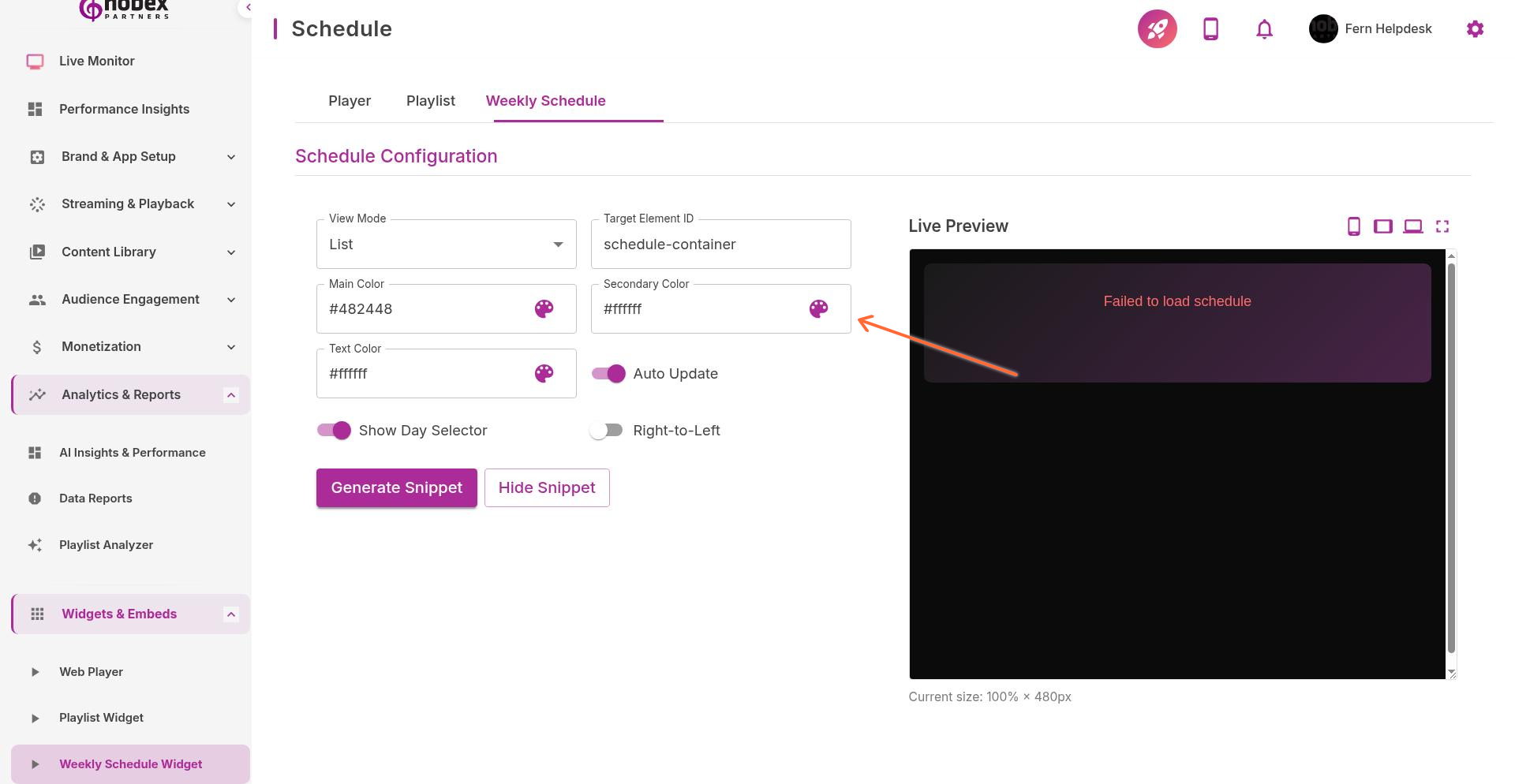
Configuration Options
View Mode — Full week grid, single day list, or compact mode
Target Element ID — HTML element ID where widget will appear
Main Color — Primary brand color for headers and highlights
Secondary Color — Accent color for current show indicator
Text Color — Show name and time text color
Auto Update — Highlight currently airing show automatically
Show Day Selector — Let users switch between days
Right-to-Left — Enable for Arabic or Hebrew language sites
Enable Auto Update to highlight the current show in real-time. This helps visitors know what's on air right now.
Embedding the Widget
After configuration, click Generate Code to get the embed snippet. Add it to your website where you want the schedule to display.
<!-- Schedule container -->
<div id="nobex-schedule"></div>

<!-- Widget script -->
<script src="https://widgets.nobexpartners.com/schedule.js"></script>
Display Options
Full Week Grid — Best for desktop, shows entire week at once
Single Day List — Mobile-friendly, shows one day with selector
Compact Mode — Minimal view showing just current and next shows
Keeping It Updated
The widget pulls schedule data from your Nobex dashboard automatically. When you update your weekly schedule, the website widget reflects changes within minutes—no need to update embed code.
The schedule widget respects your timezone settings. Shows display in the visitor's local time if you enable timezone conversion.