
Roles & Permissions
Roles & Permissions define what each type of user can access and modify in your dashboard. Use predefined roles or create custom permission sets for your team.
Accessing Roles & Permissions
Navigate to Roles & Permissions from the header menu or visit /roles-permissions.
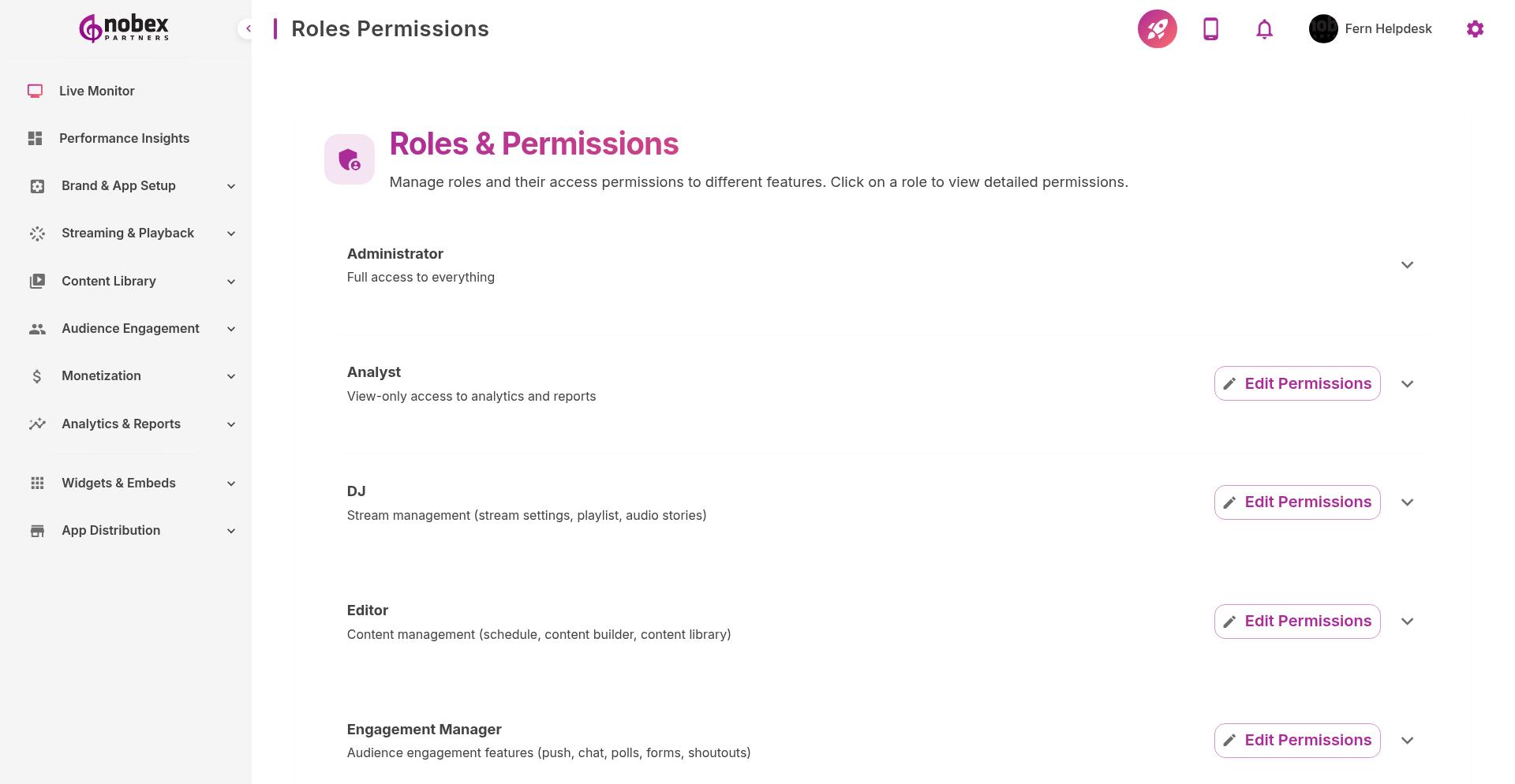
System Roles
Nobex provides seven predefined roles with specific permission sets:
Administrator
Full access to all features, settings, billing, and user management. Can view and modify everything.
Editor
Manages content and programming:
Weekly Schedule editing
Content Builder (app home screen)
Audio/Video On Demand library
Audio Stories
Brand and Contact Settings (view only)
DJ
Controls live streaming features:
Stream Settings configuration
Stream Playlist (now-playing metadata)
Audio Stories
Shoutouts (view and respond)
Engagement Manager
Handles audience interaction features:
Push Notifications
Community Chat moderation
Chat Compliance settings
Shoutouts management
Polls creation and results
Forms creation and submissions
Monetization Manager
Manages revenue features:
Google Ads setup
Custom Ads creation and scheduling
Revenue Reports (view only)
Analyst
View-only access to data and insights:
All Reports (Activity, Engagement, Revenue, etc.)
Performance Insights
Playlist Analyzer
Live Monitor
Viewer
Read-only access to basic information:
Live Monitor (view only)
App preview
Basic statistics
Most teams need only 2-3 roles. Start with Administrator, Editor, and Analyst. Add specialized roles as your team grows.
Custom Permissions (Enterprise)
Enterprise plans can create custom roles with granular permissions. Mix and match access to specific features instead of using predefined roles.
Contact your account manager at [email protected] to enable custom permission sets.