Chapter 4: How to Use Audience Engagement Features
The Audience Engagement section in your Nobex Partners admin portal gives you powerful tools to connect with listeners, gather feedback, and build community around your station. You'll find Push Notifications, Community Chat, Shoutouts, Polls, and Forms all in one place.
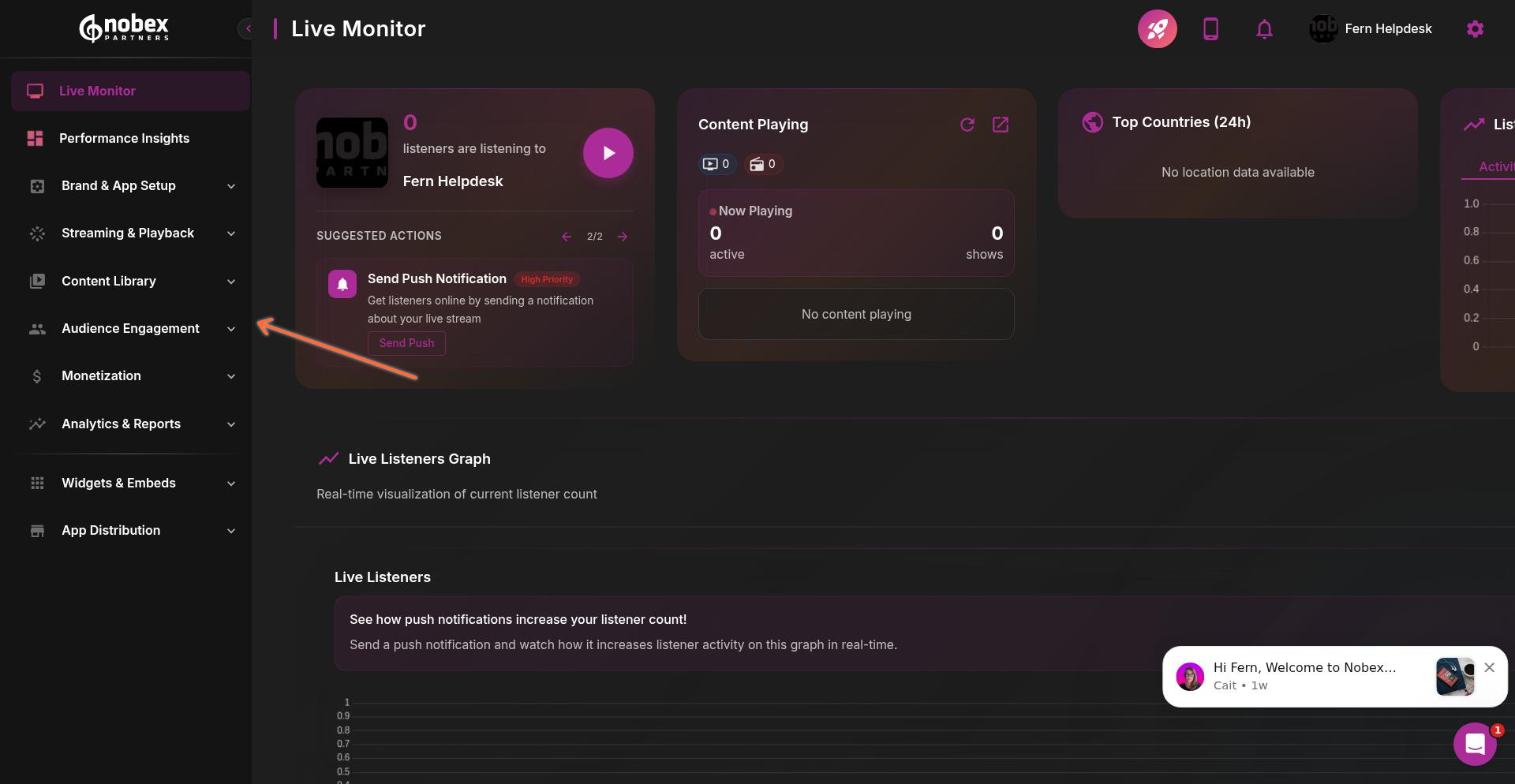
To access these features, log into your admin portal and click Audience Engagement in the left navigation.
Push Notifications
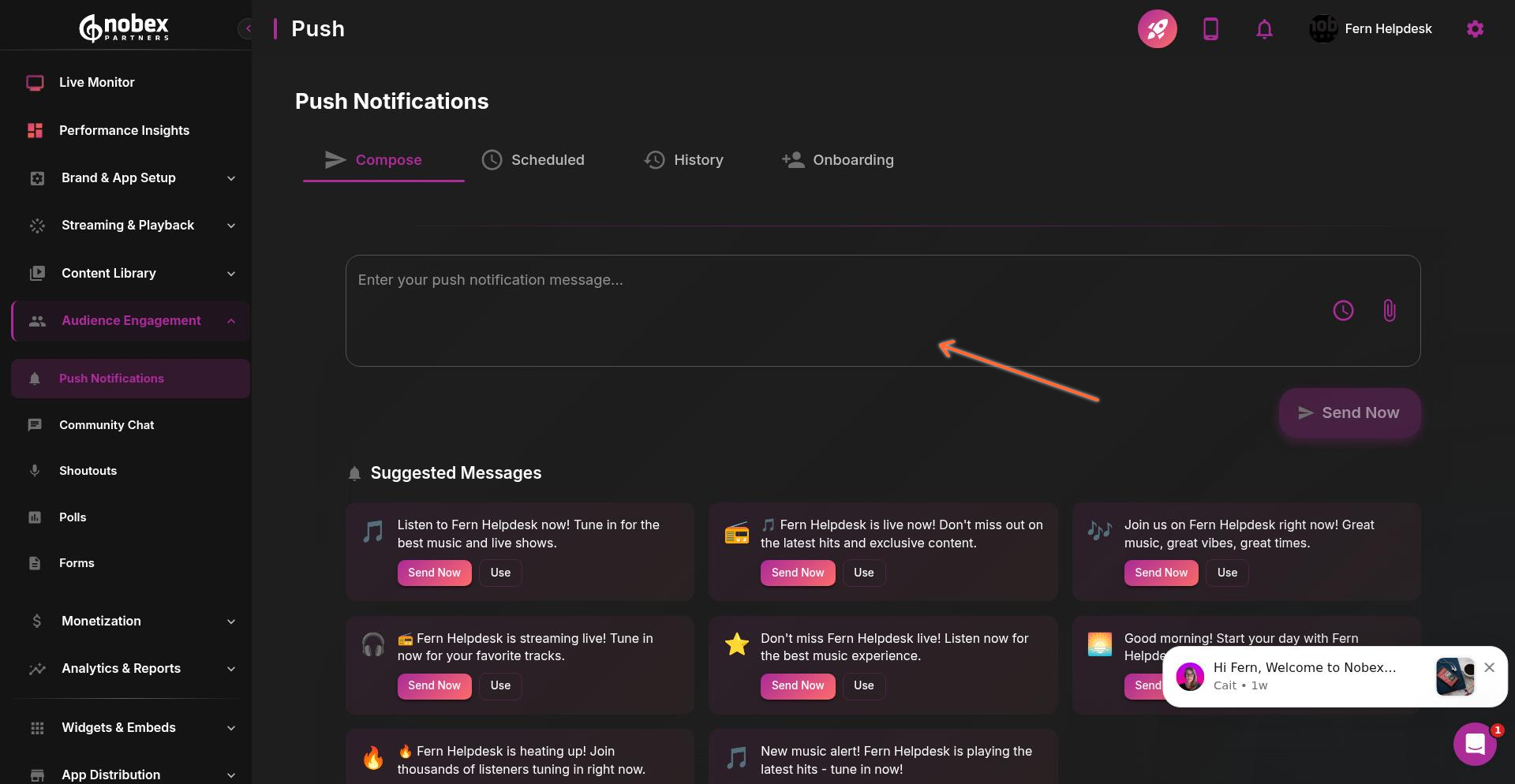
Push notifications let you send messages directly to listeners' devices, keeping them engaged even when they're not actively using your app.
Sending a Quick Message
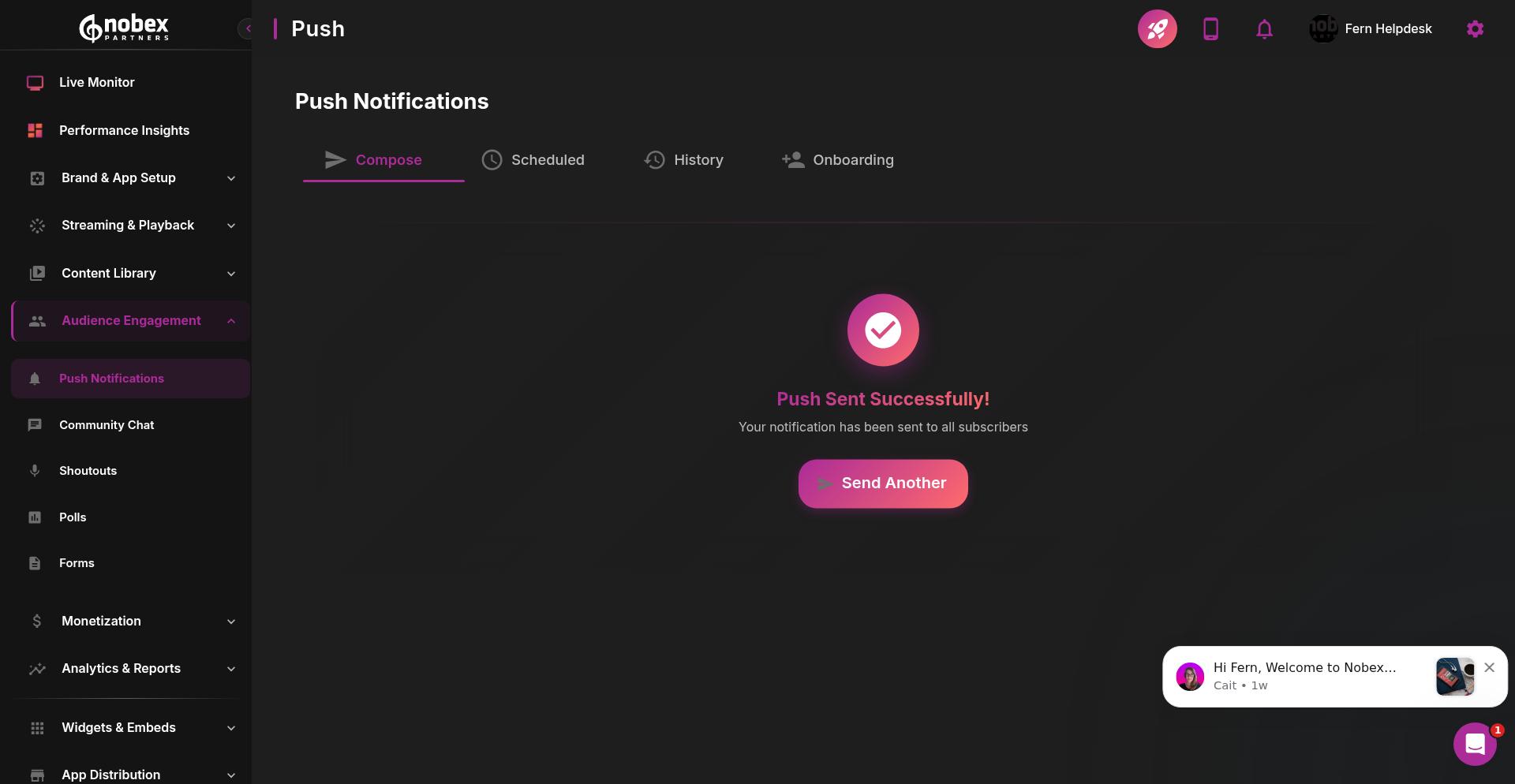
The easiest way to send a push notification is using one of the suggested messages. Simply select a message and click Send Now to broadcast it immediately to all your listeners.
Scheduling Messages
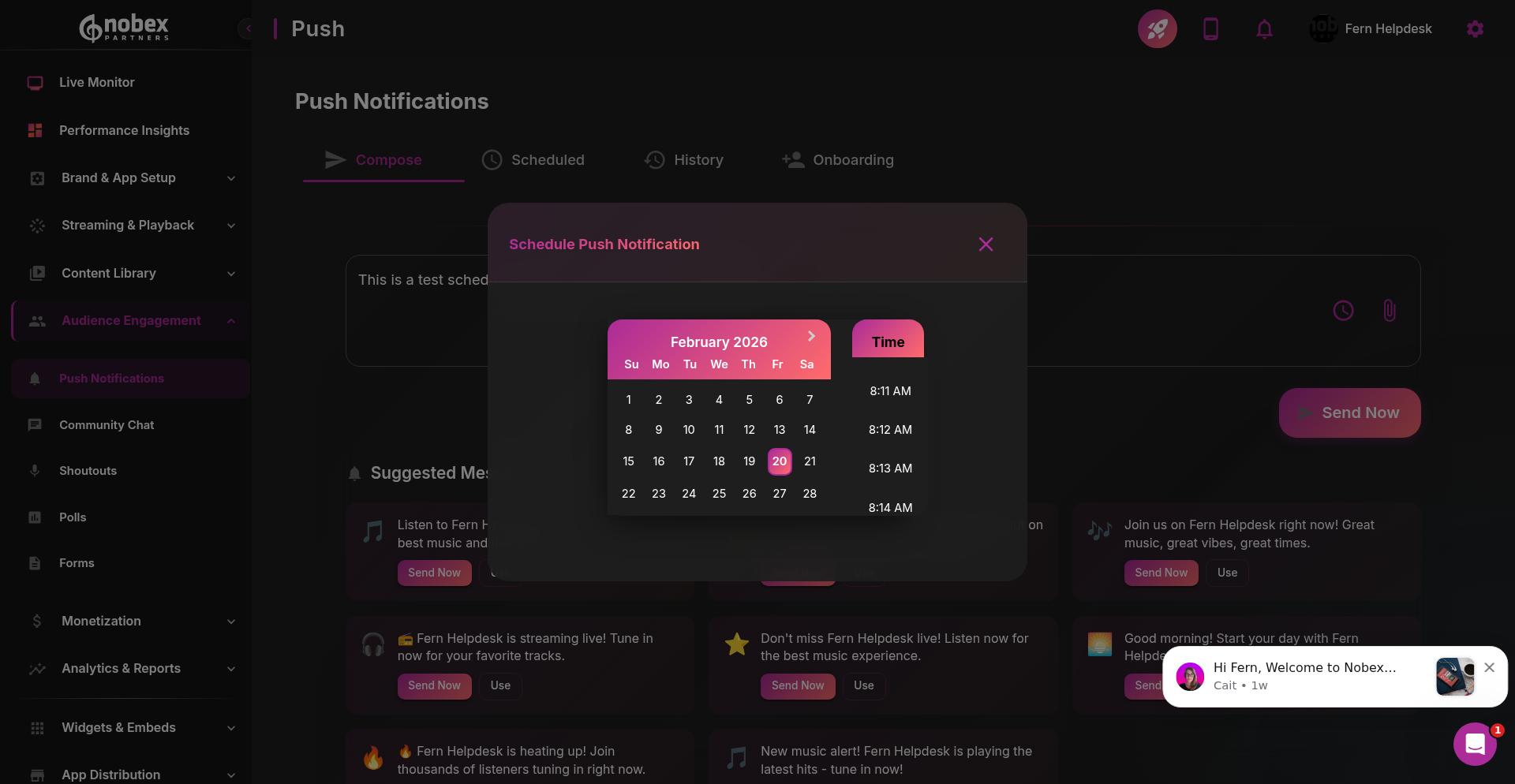
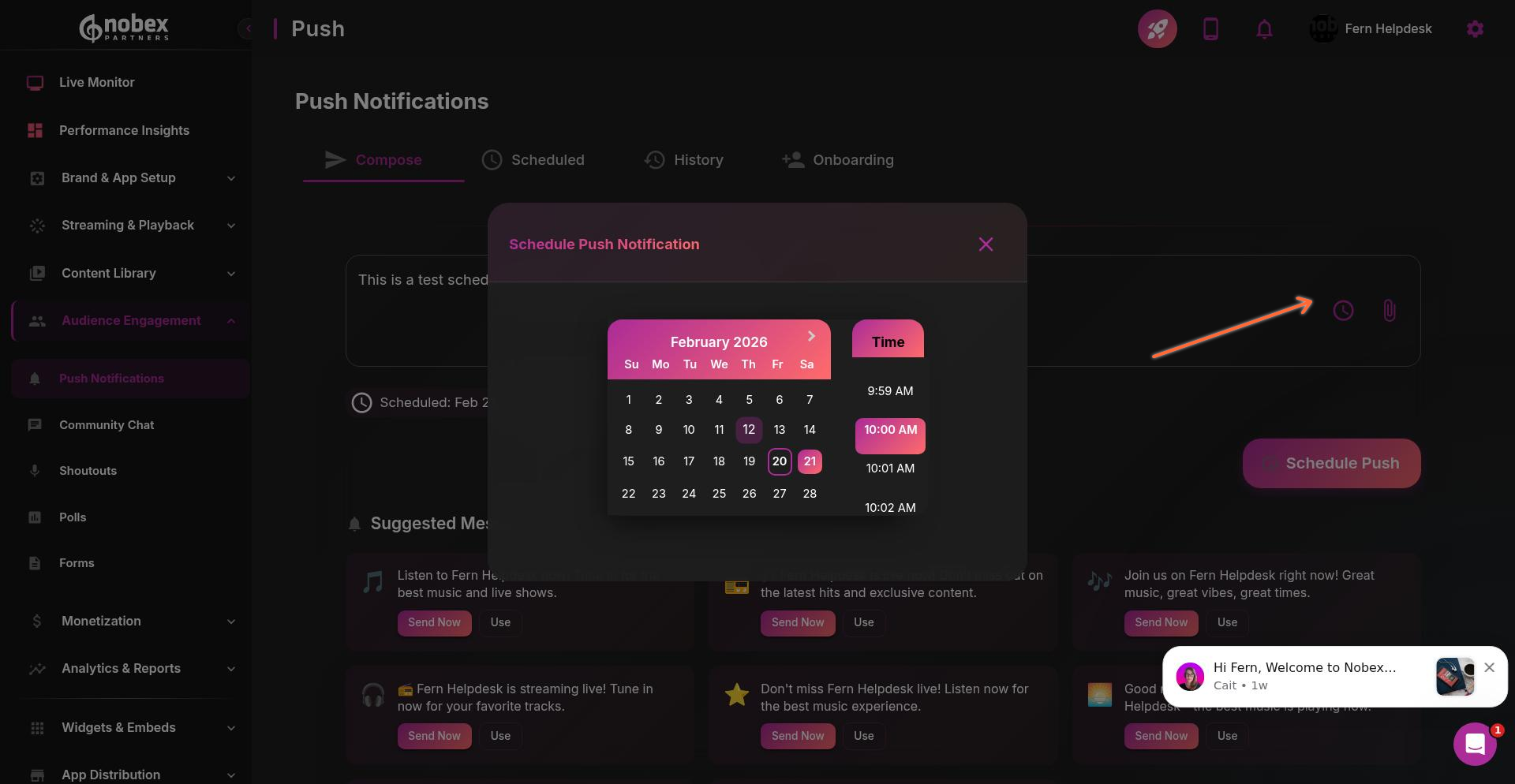
You can also create custom messages and schedule them for later. Set your message content, choose a date and time, and the notification will be sent automatically at the scheduled time.
After scheduling a message, visit the Scheduled tab to see all messages waiting in the queue.
Linking Content to Notifications
If you've integrated Social or Video features, you can link specific content directly to your push notifications. Click the Attach Item button to search recent content and attach it to your message. When listeners tap these notifications, they'll arrive directly on that content in the app—perfect for highlighting new videos or social posts.
Onboarding Messages
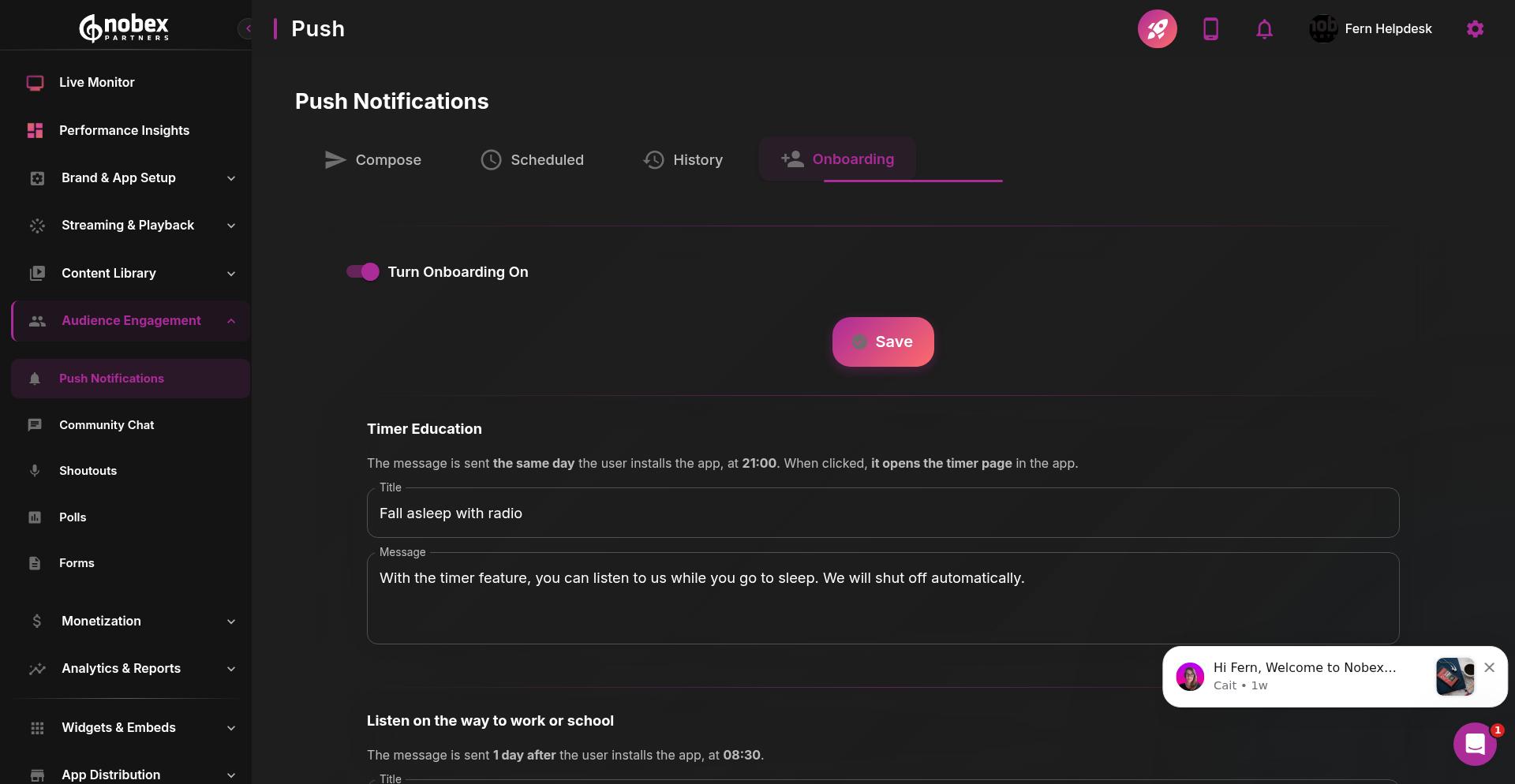
The Onboarding tab shows the automated message series that new users receive after installing your app. These messages walk new listeners through key app features, helping them discover everything your app offers.
Community Chat
Community Chat creates a live conversation space where listeners can interact with you and each other in real time.
Managing Chat Availability
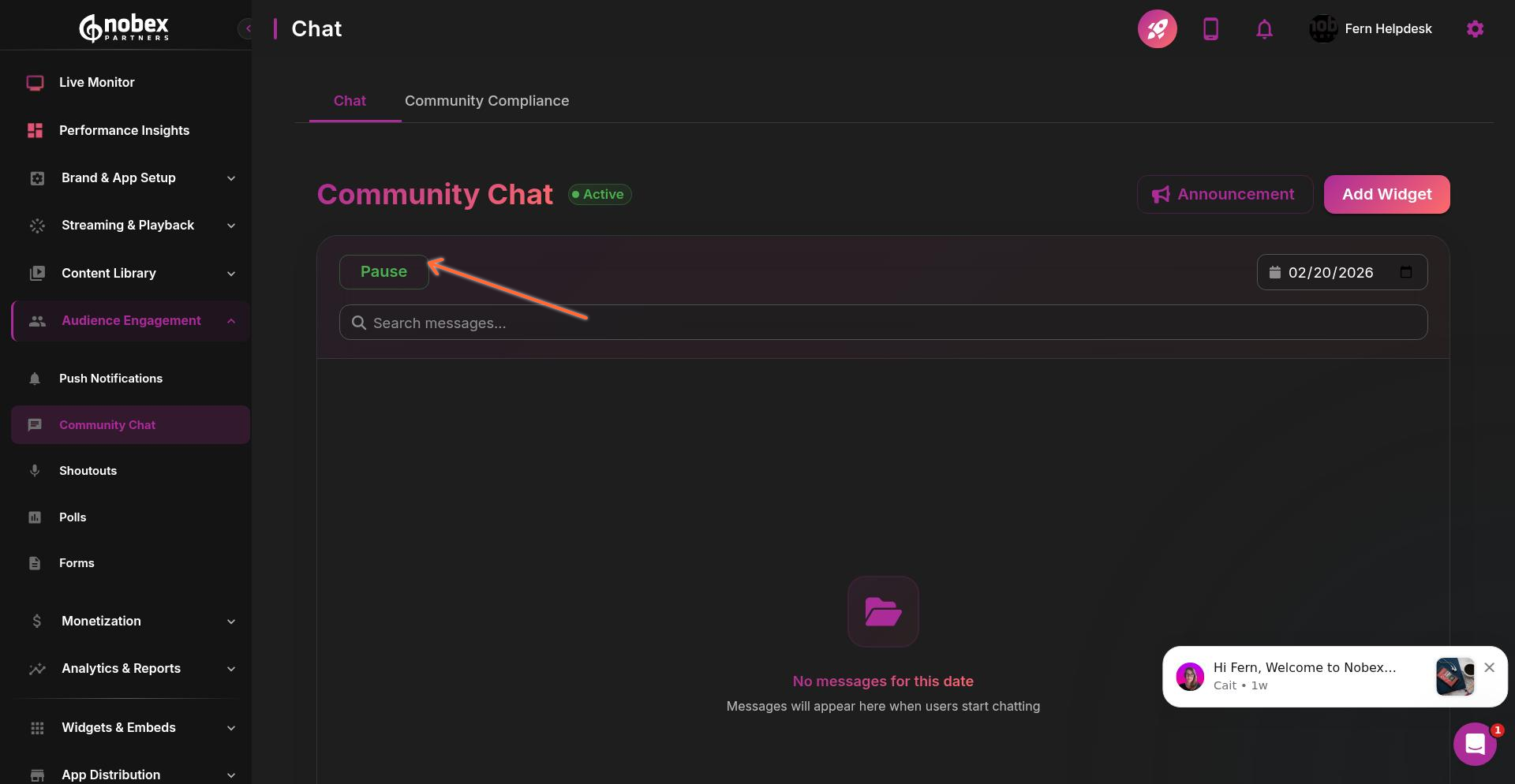
You can enable or pause the chat at any time using the toggle control. Many stations use this strategically—turning chat on only during specific shows or live broadcasts to create focused conversation windows.
Some stations turn the chat on only while specific shows are scheduled on air, creating anticipation and focused engagement during those times.
Adding Chat to Your Home Page
To make chat easily accessible for listeners, click the Add Widget button to add the Chat widget to your App Home Page.
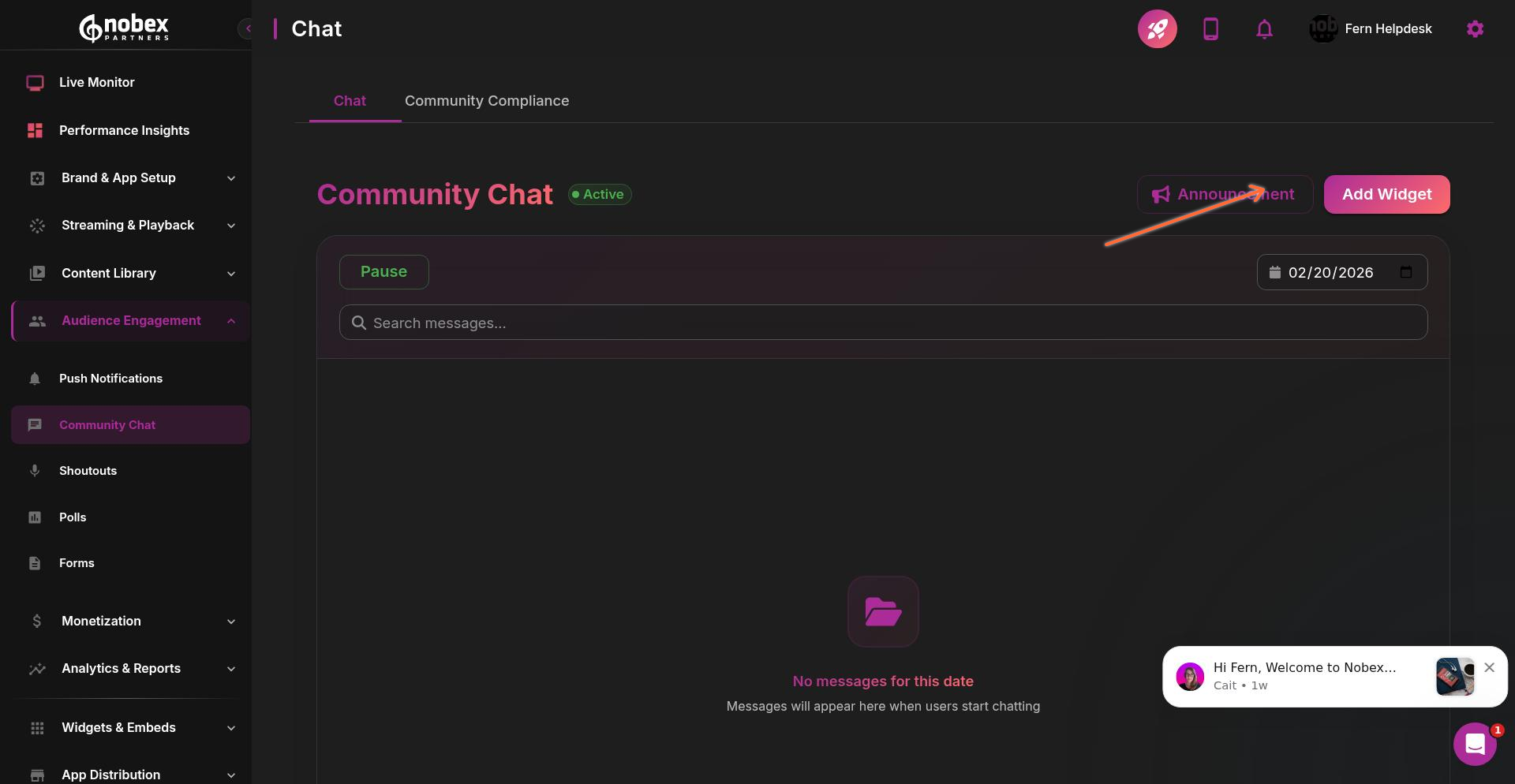
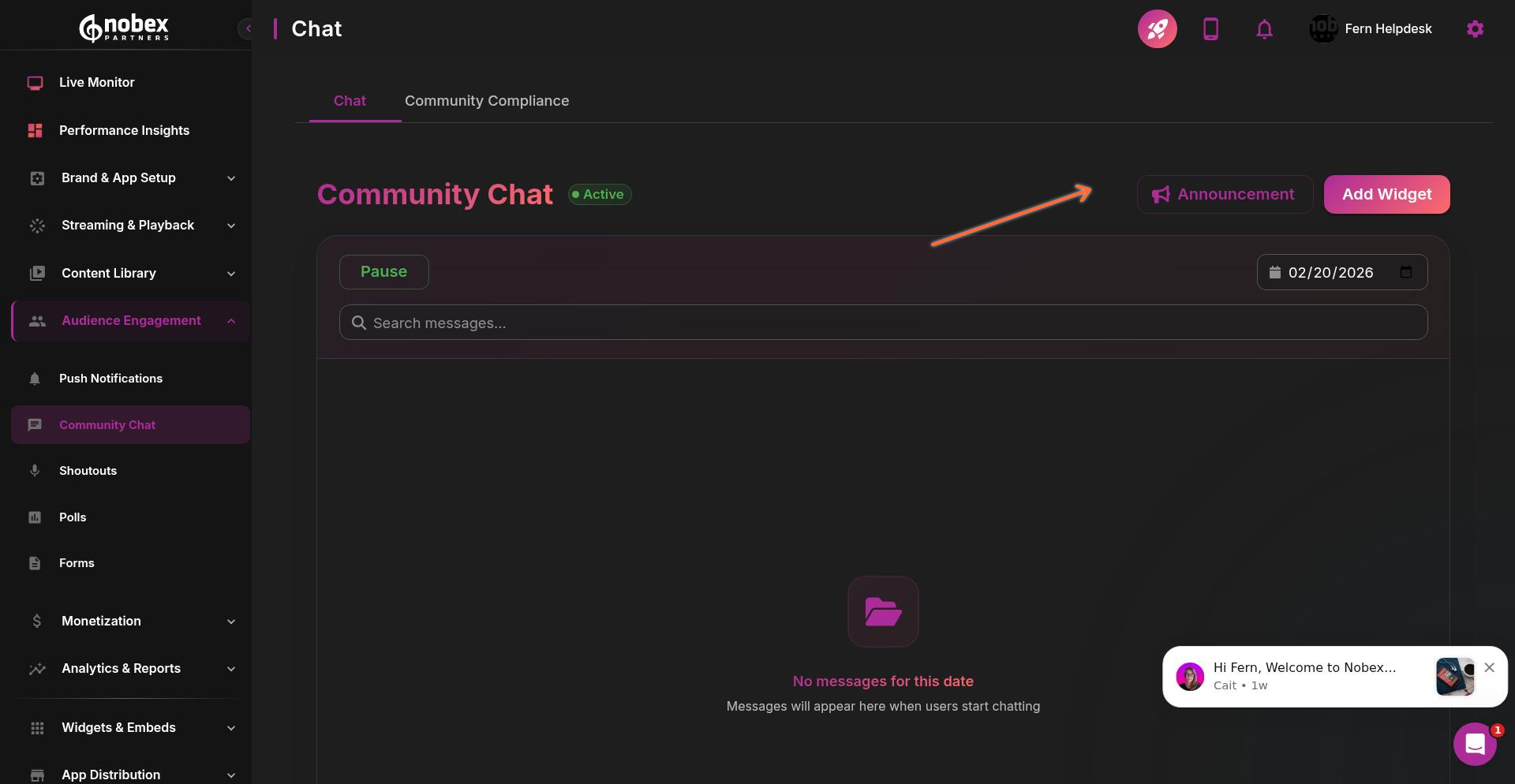
Making Announcements
The Announcement button lets you send a special type of message that stands out visually in the chat. This makes it easy for listeners to spot important messages from the admin among regular chat conversation.
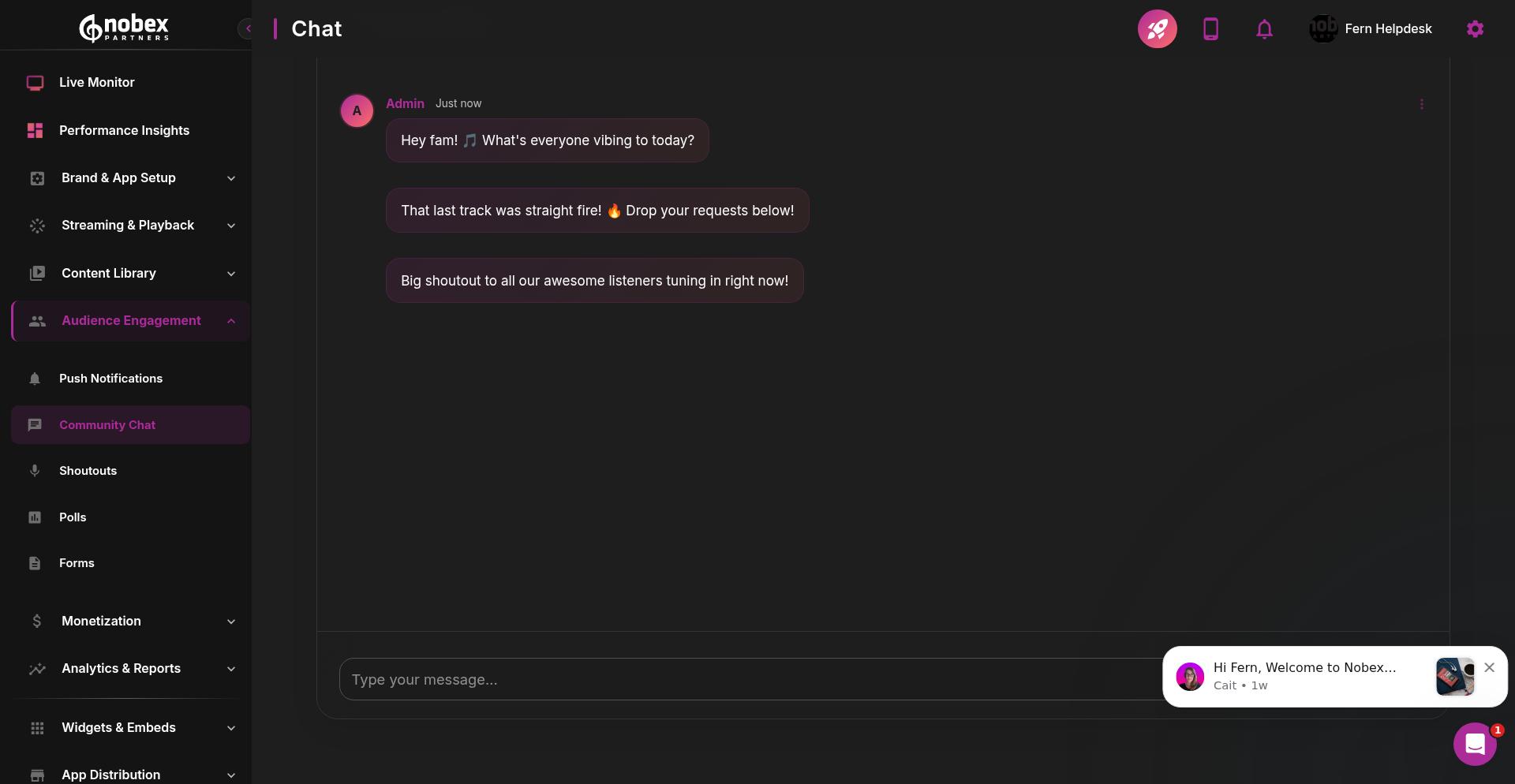
When chatting with listeners, keep your tone friendly and engaging. Here's what active chat interaction looks like:
Community Compliance
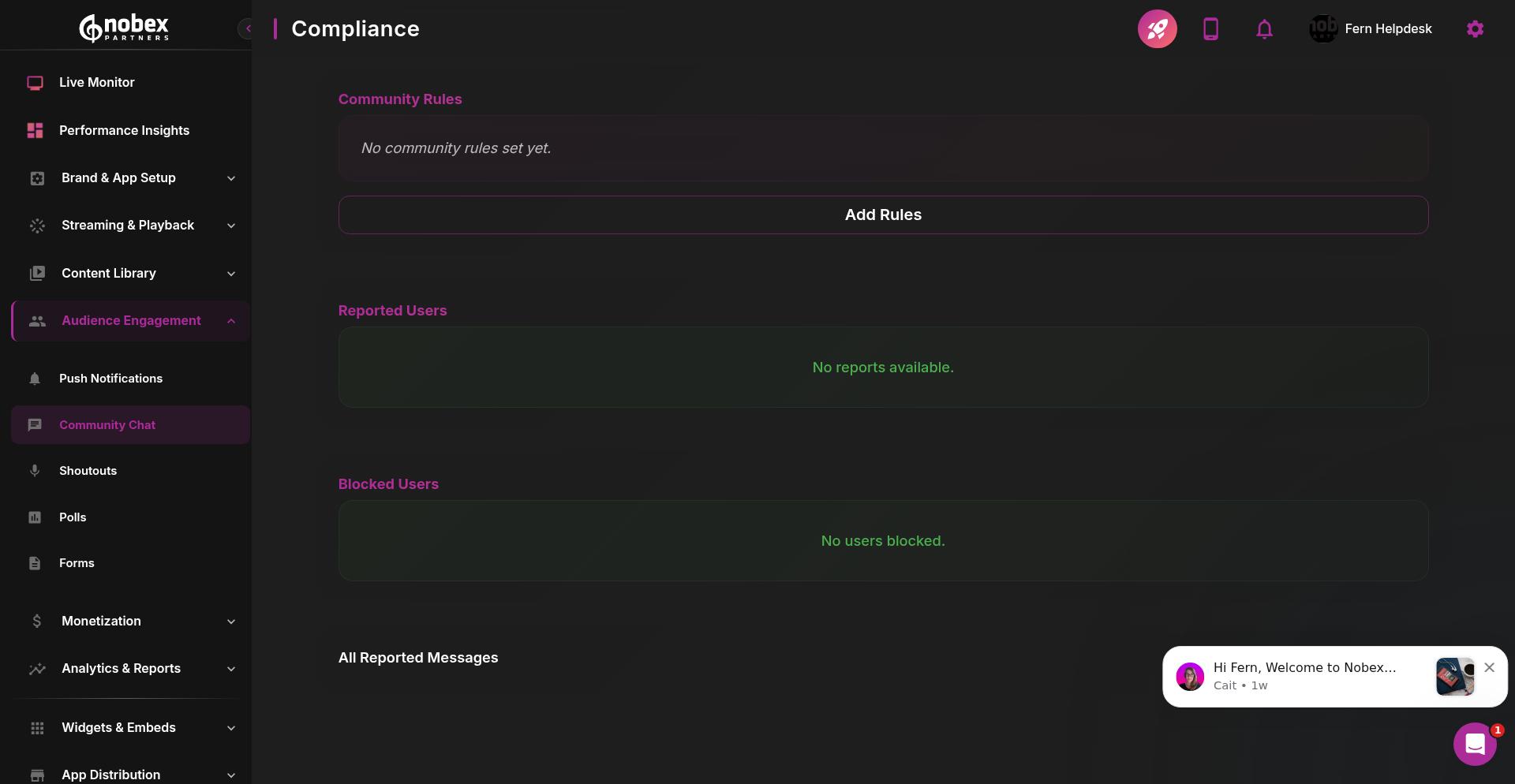
The Community Compliance tab helps you keep the chat safe and welcoming. Here you can edit the community rules that govern chat behavior.
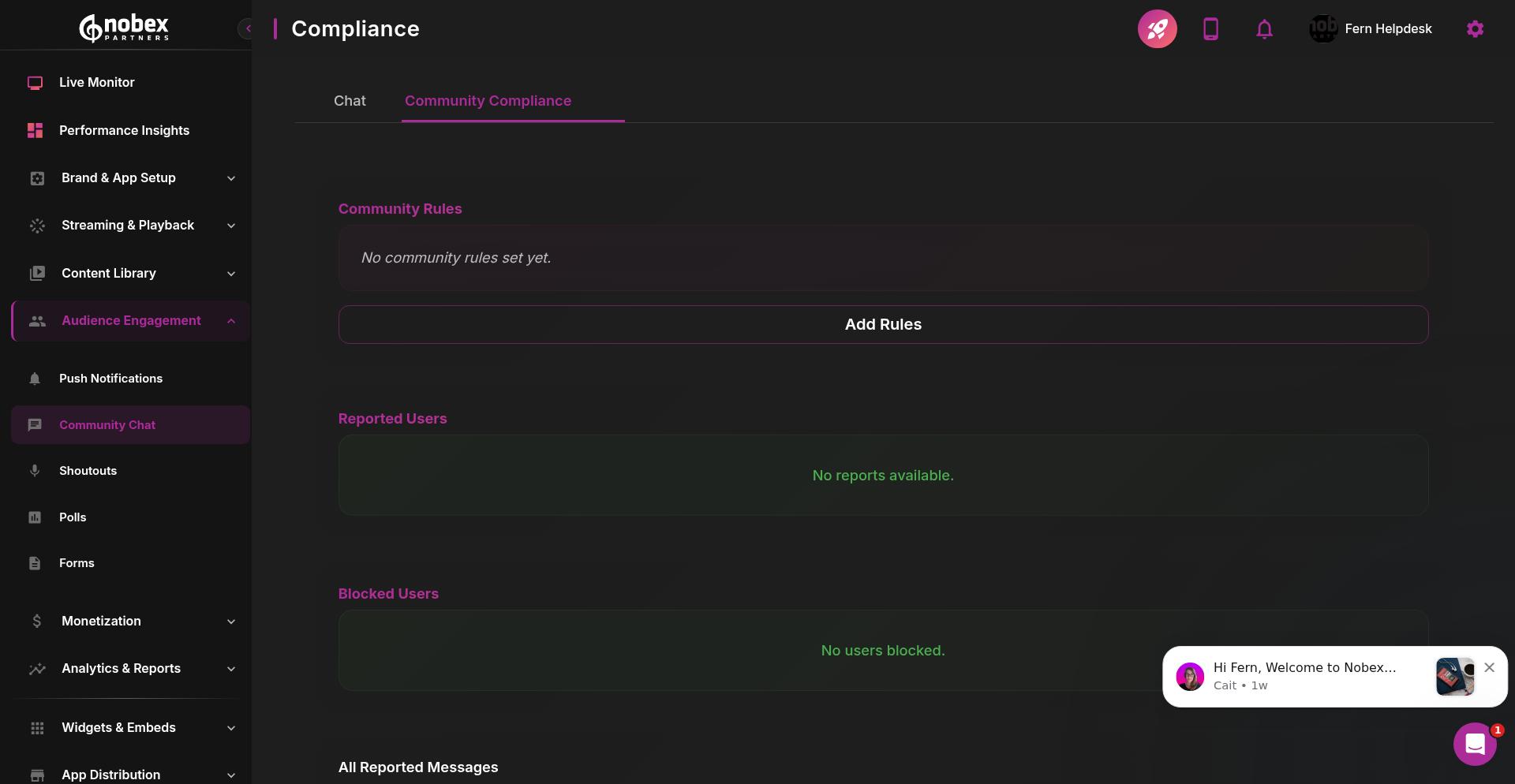
Any users that other listeners have reported will appear in this section, where you can review their activity and take action to block them if needed. This keeps your chat community safe and fun for everyone.
Shoutouts
Shoutouts let listeners submit brief audio messages directly through your app. These can add personality to your broadcasts and give listeners a voice on air.
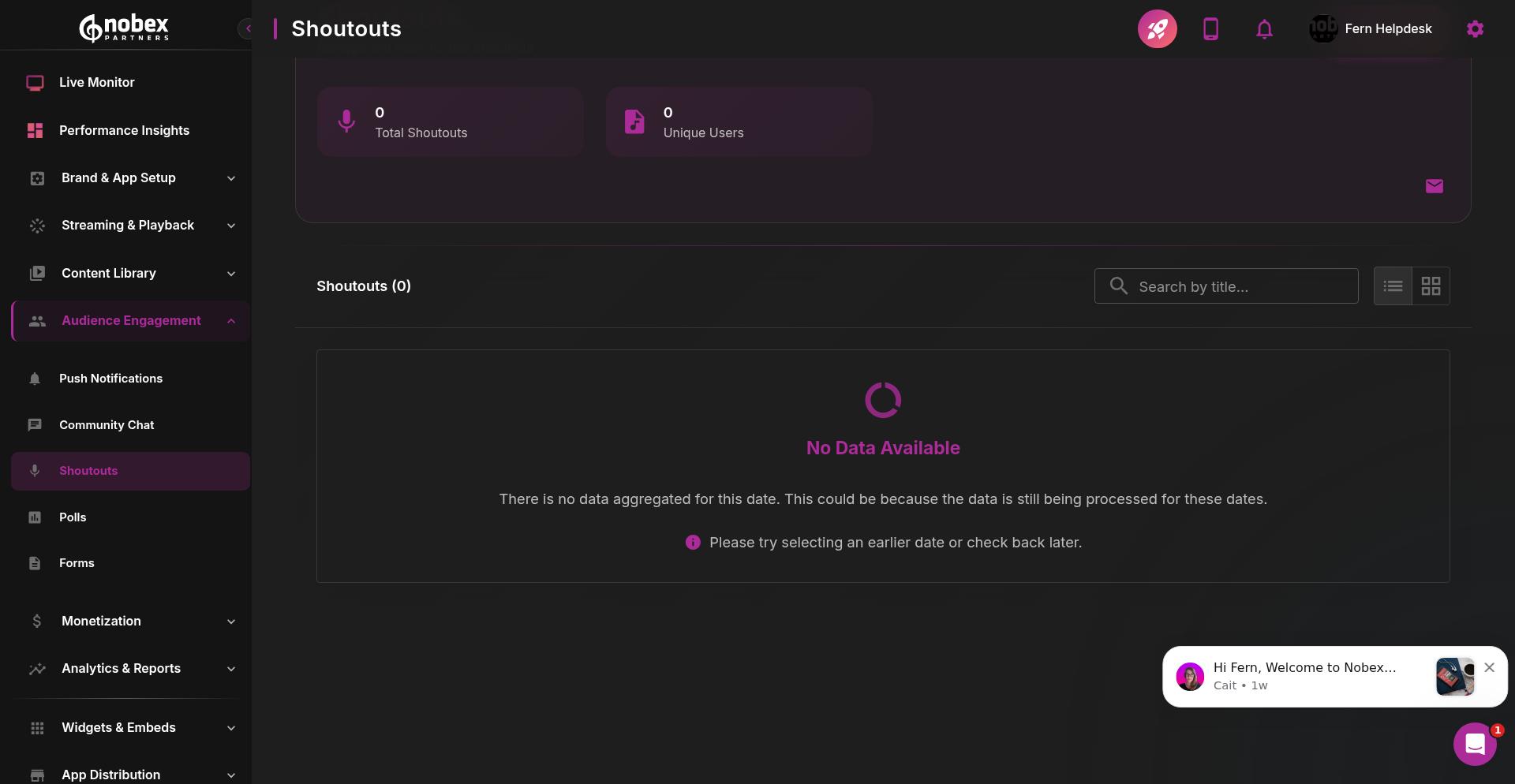
All submitted shoutouts appear in your dashboard where you can play them directly to preview, or download them to use in your broadcast.
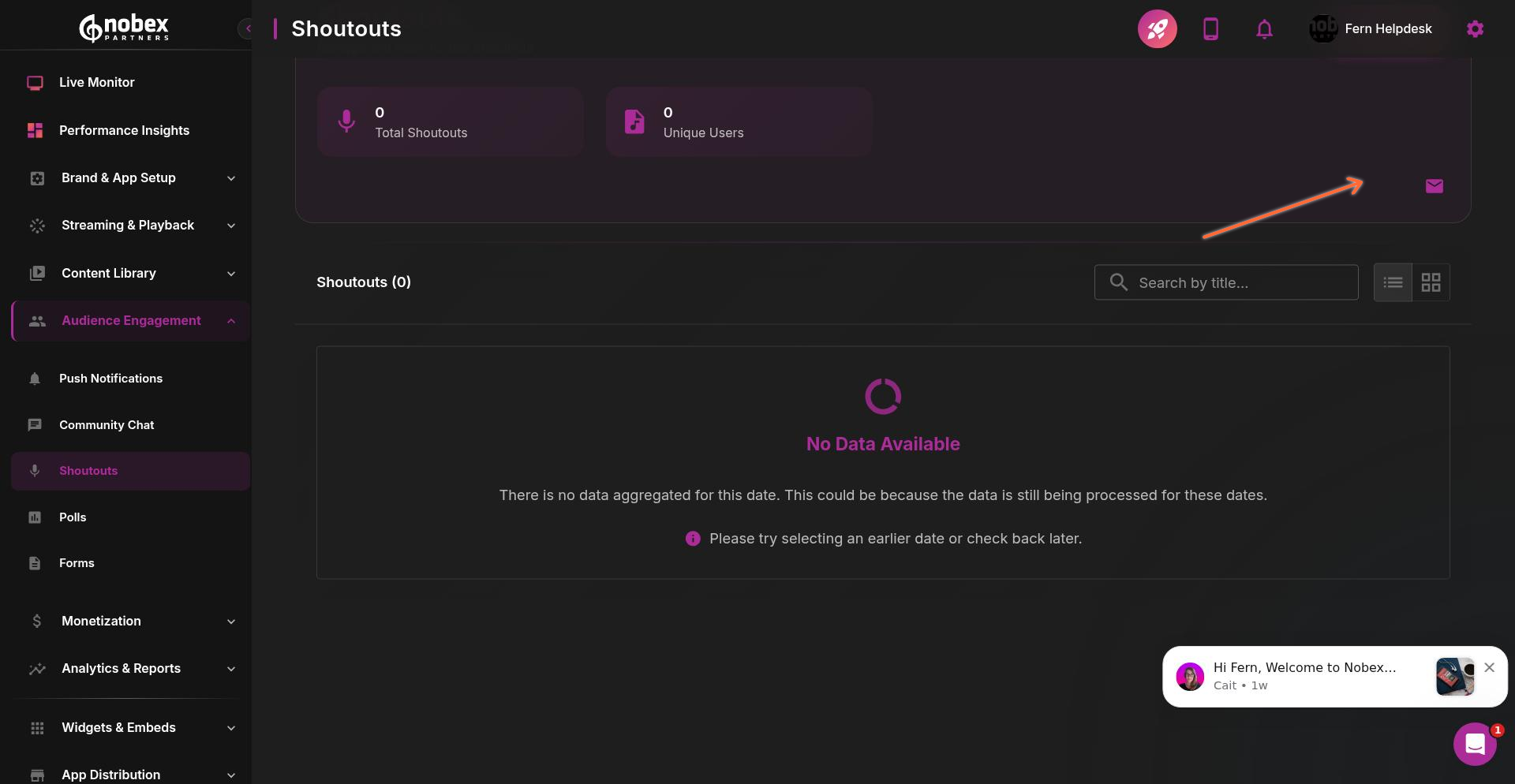
Email Notifications for New Shoutouts
Click the email notification button to set up an email address that receives alerts whenever new shoutouts are submitted. This ensures you never miss a listener message.
Polls
Polls are a quick way to gather listener opinions and create engagement around questions, music choices, or station decisions.
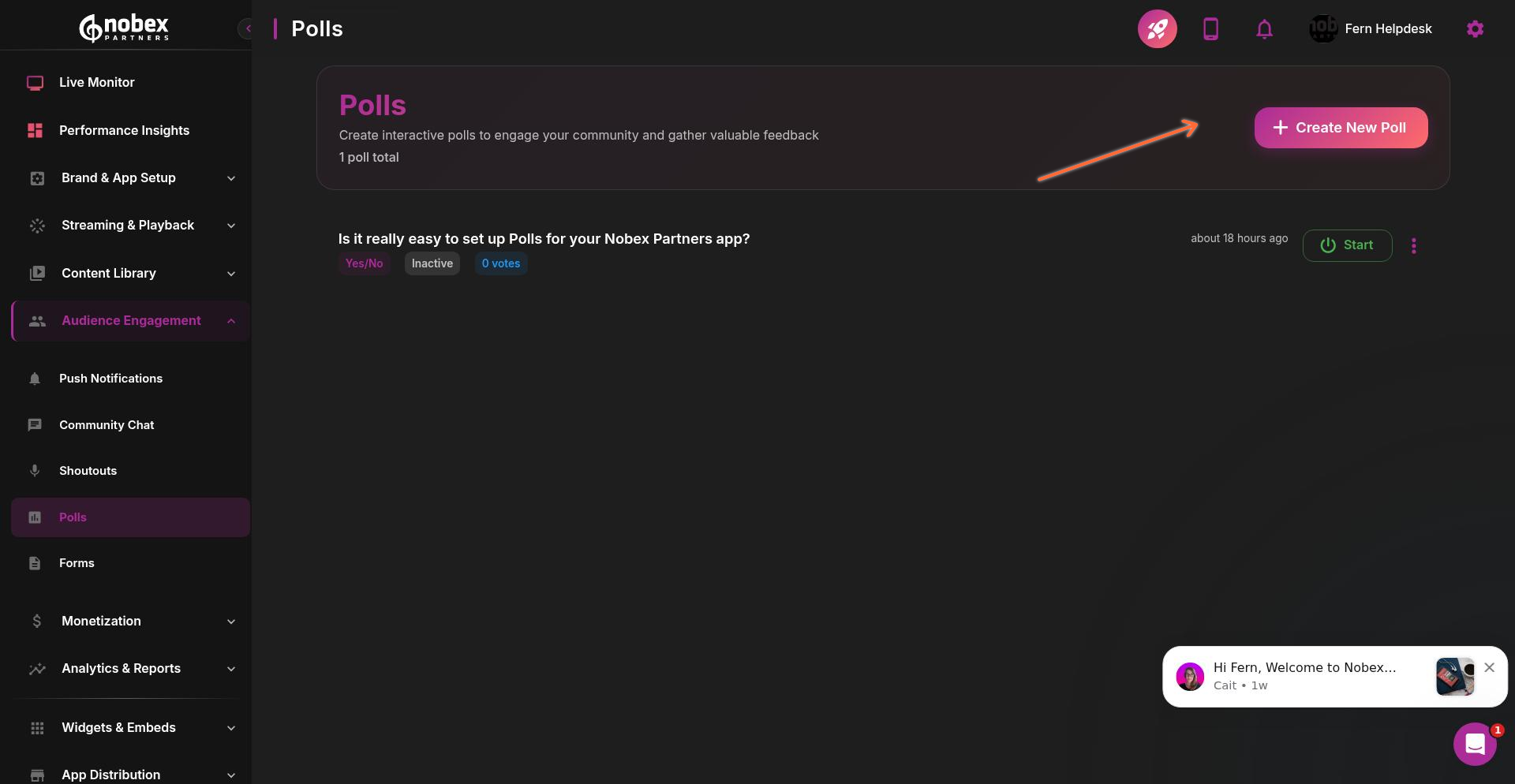
Creating a Poll
Click Create New Poll to start building your poll. Enter your poll question, choose an answer type (like Yes/No, Multiple Choice, or Rating), and customize options like whether to show results to listeners.
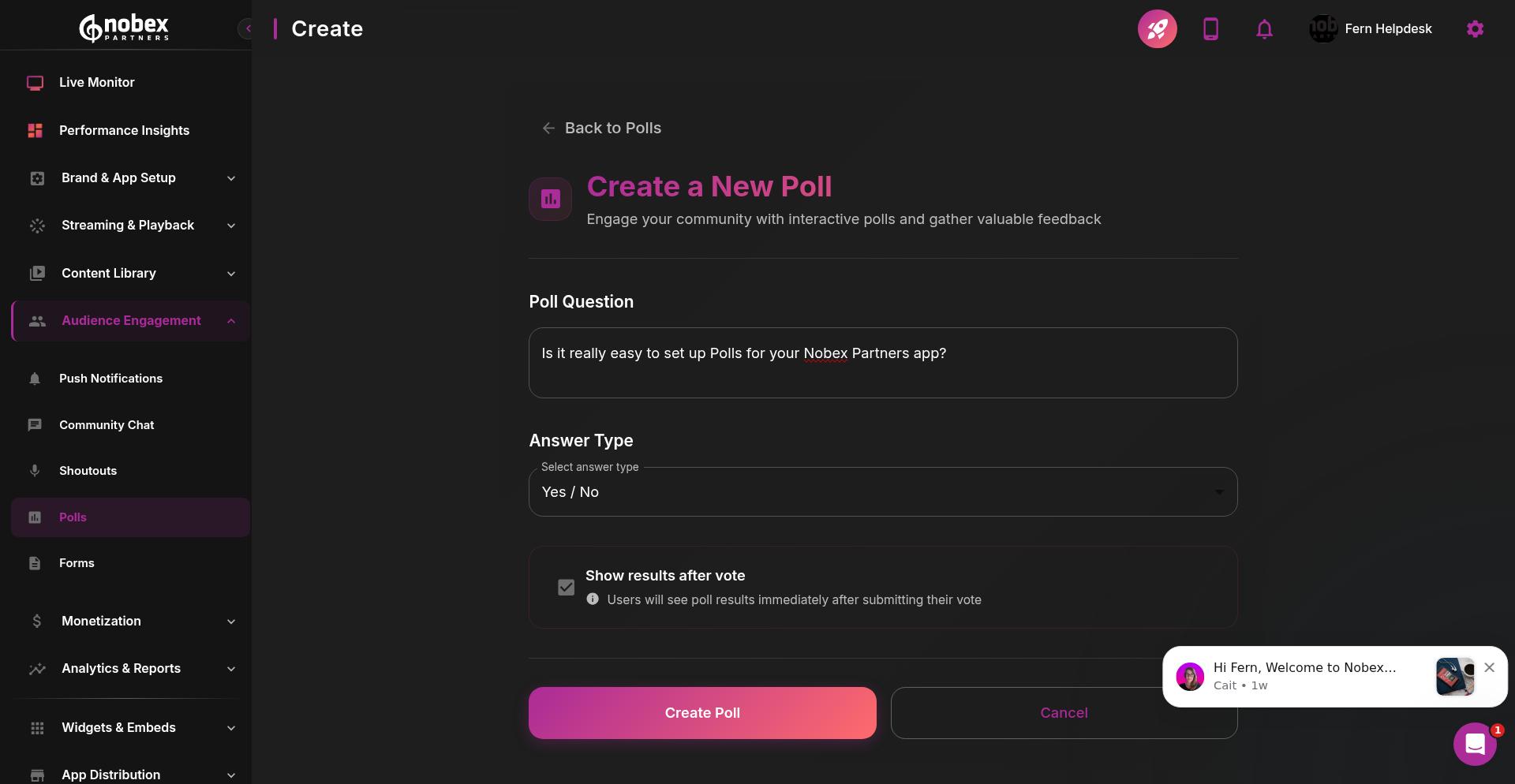
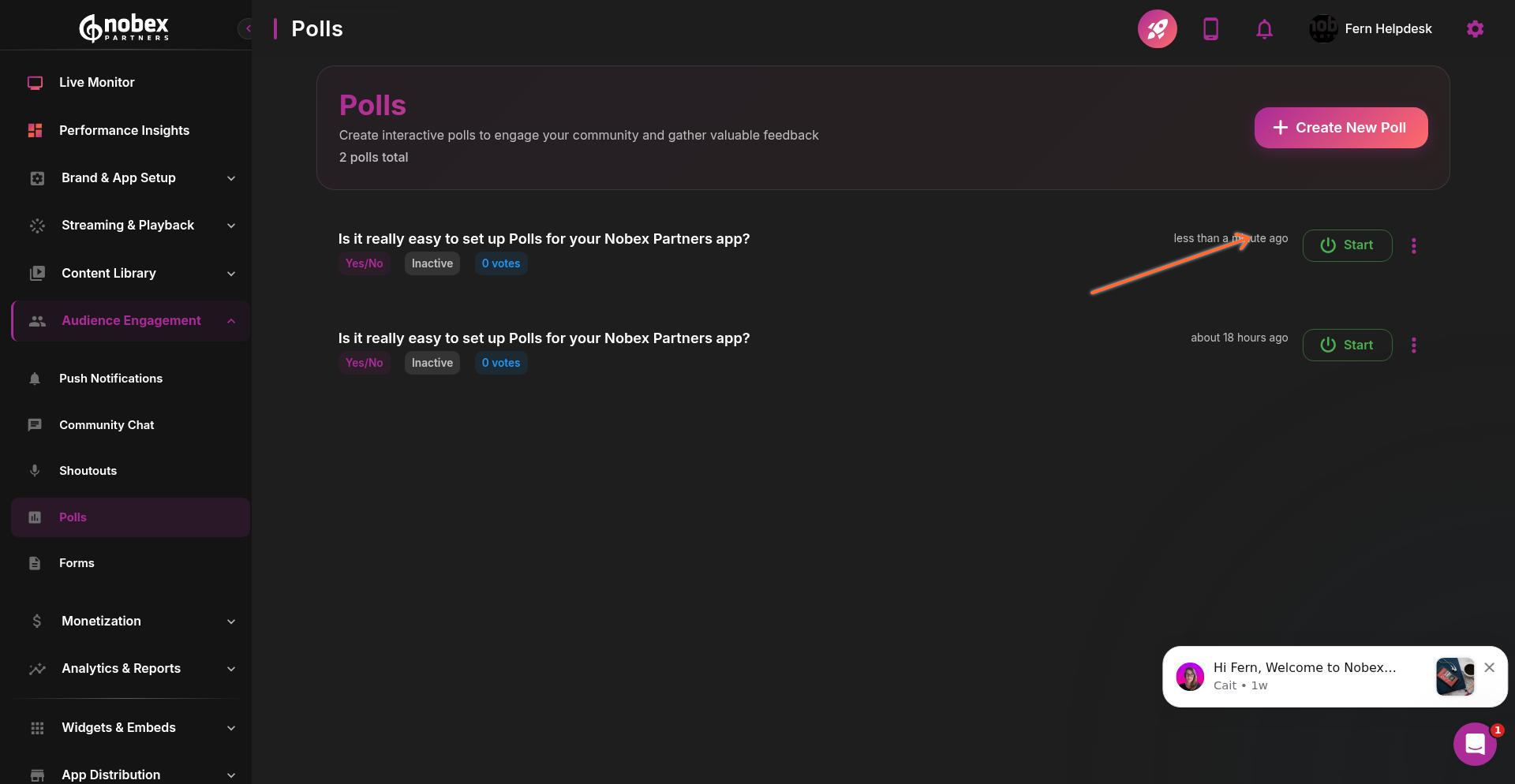
After creating a poll, it won't appear in your app until you click the Start button. This lets you prepare polls in advance and launch them when you're ready.
Managing Your Polls
Once created, your poll appears in the list with a Start button. Click it to make the poll live in your app.
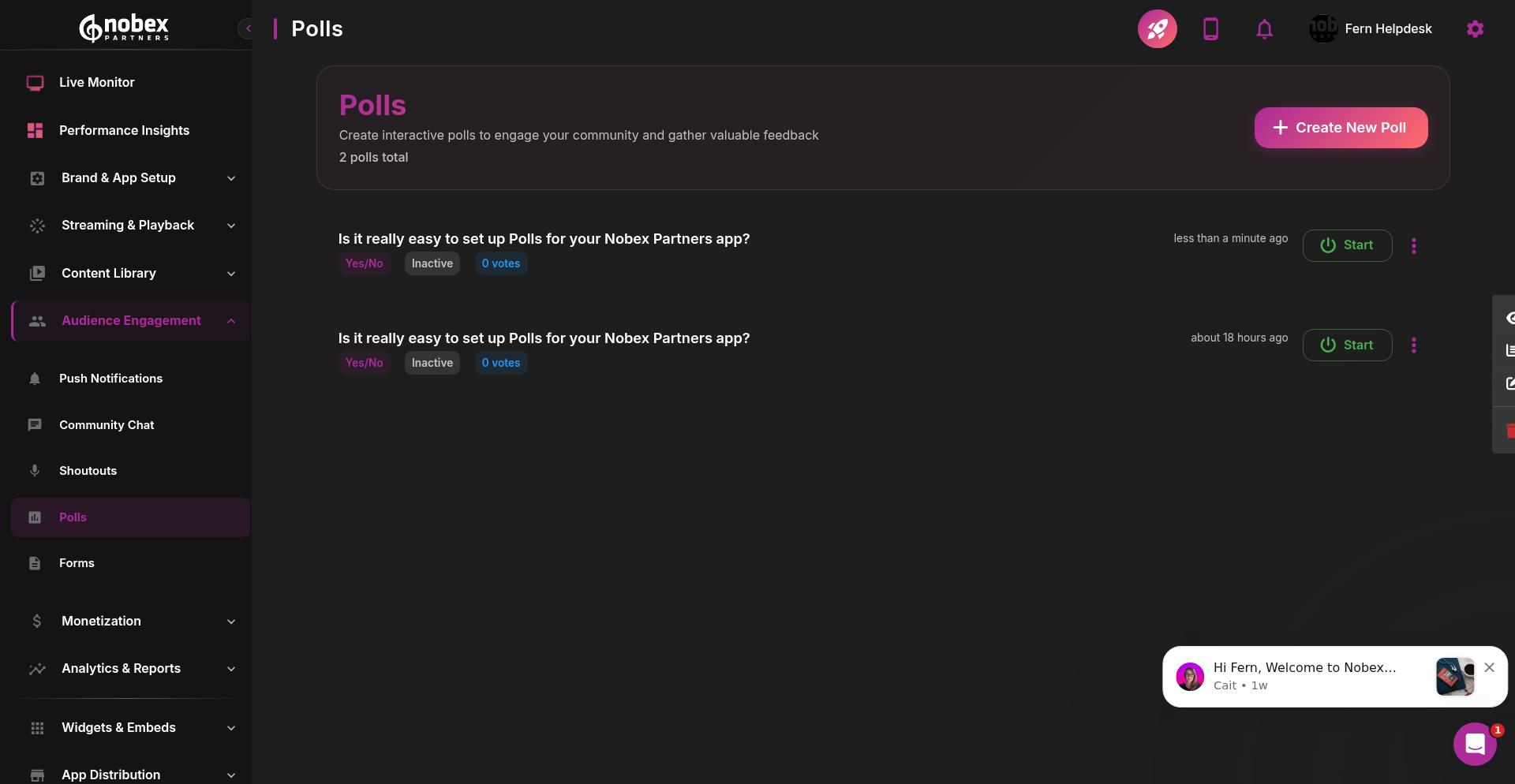
Use the actions menu (three dots) to view results, edit the poll, or delete it when you're done.
Forms
Forms let you collect structured information from listeners—perfect for song requests, contest entries, feedback, and more.
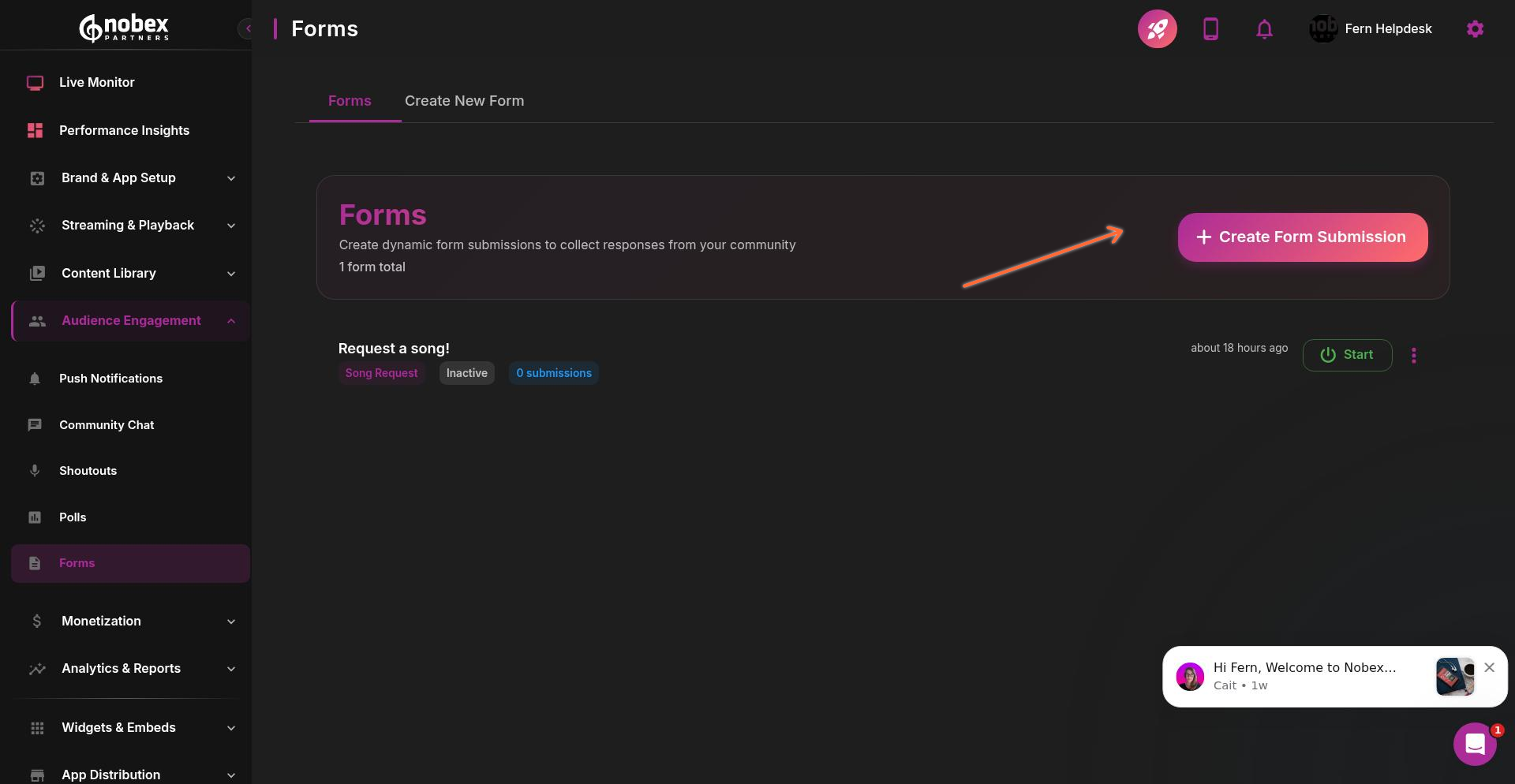
Creating a Form from Templates
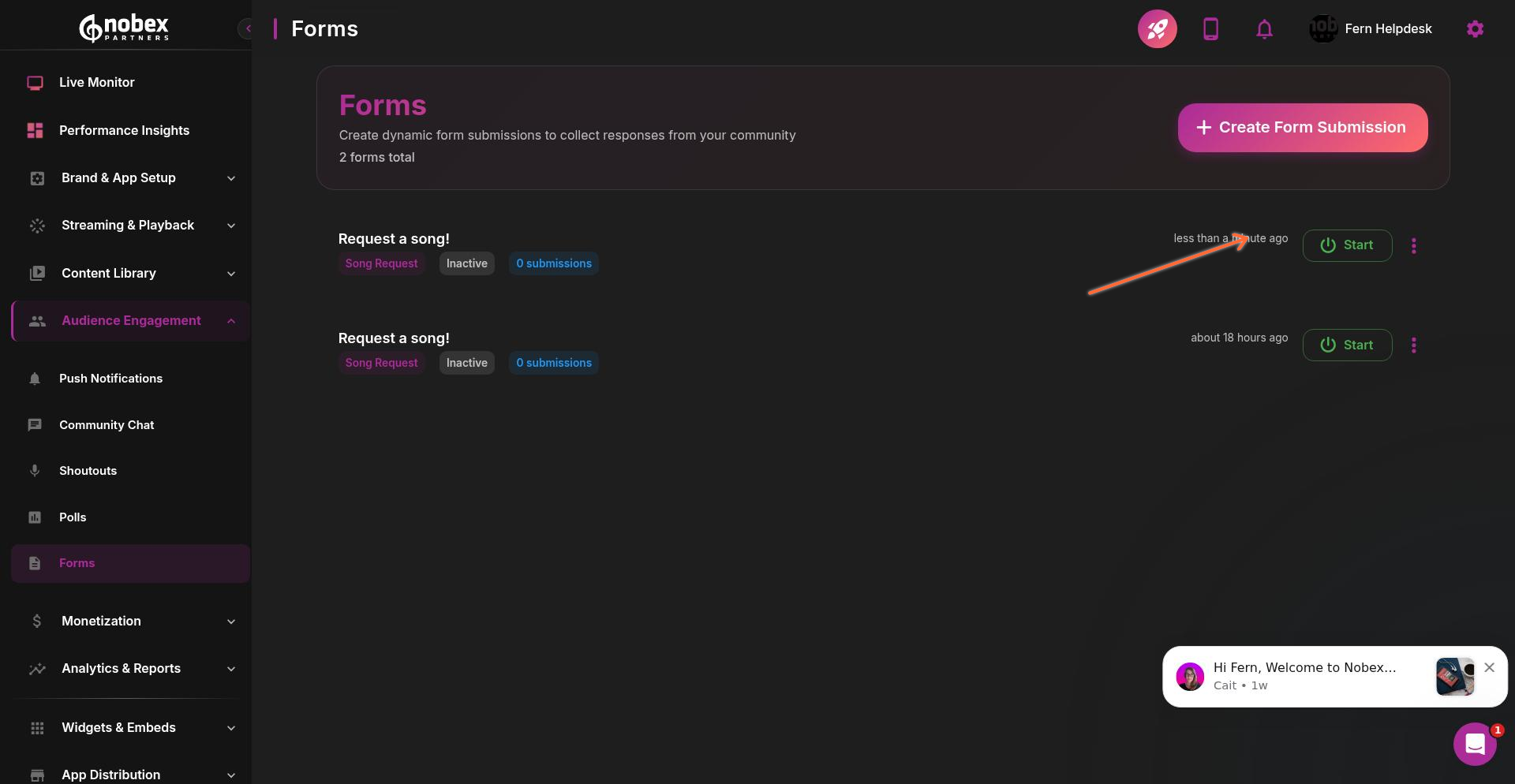
Click Create Form Submission to see available form templates. The Song Request template is a popular starting point.
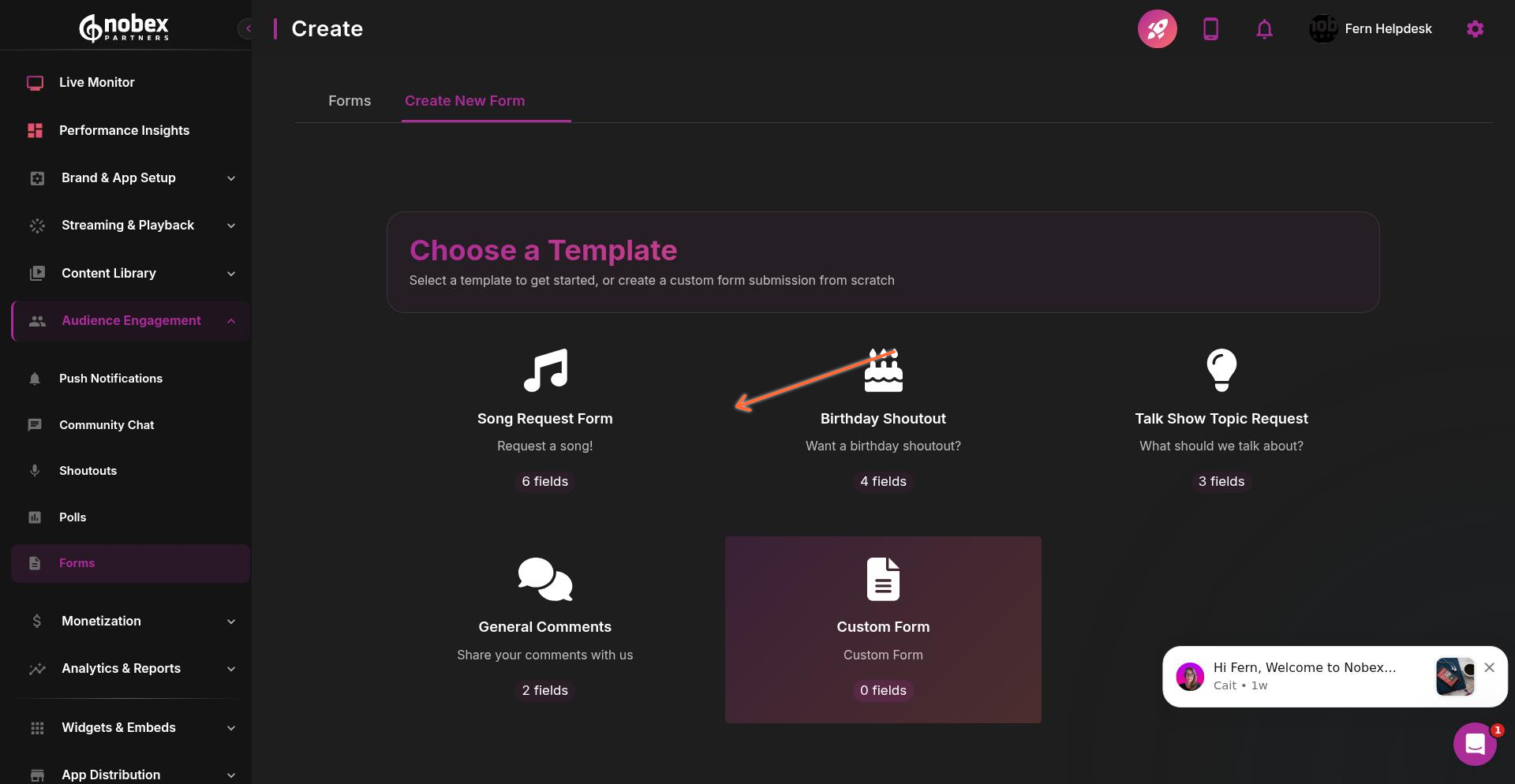
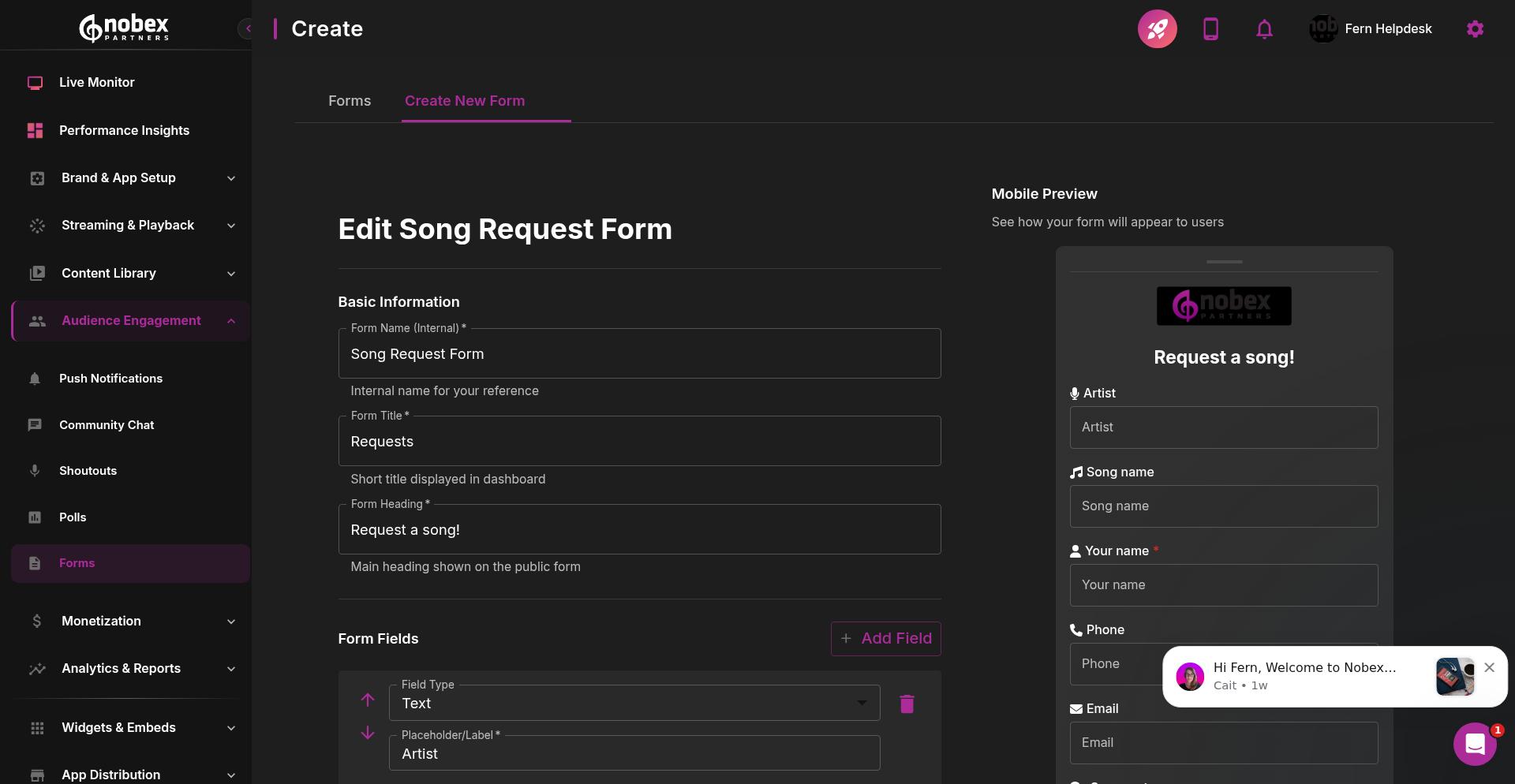
Customizing Your Form
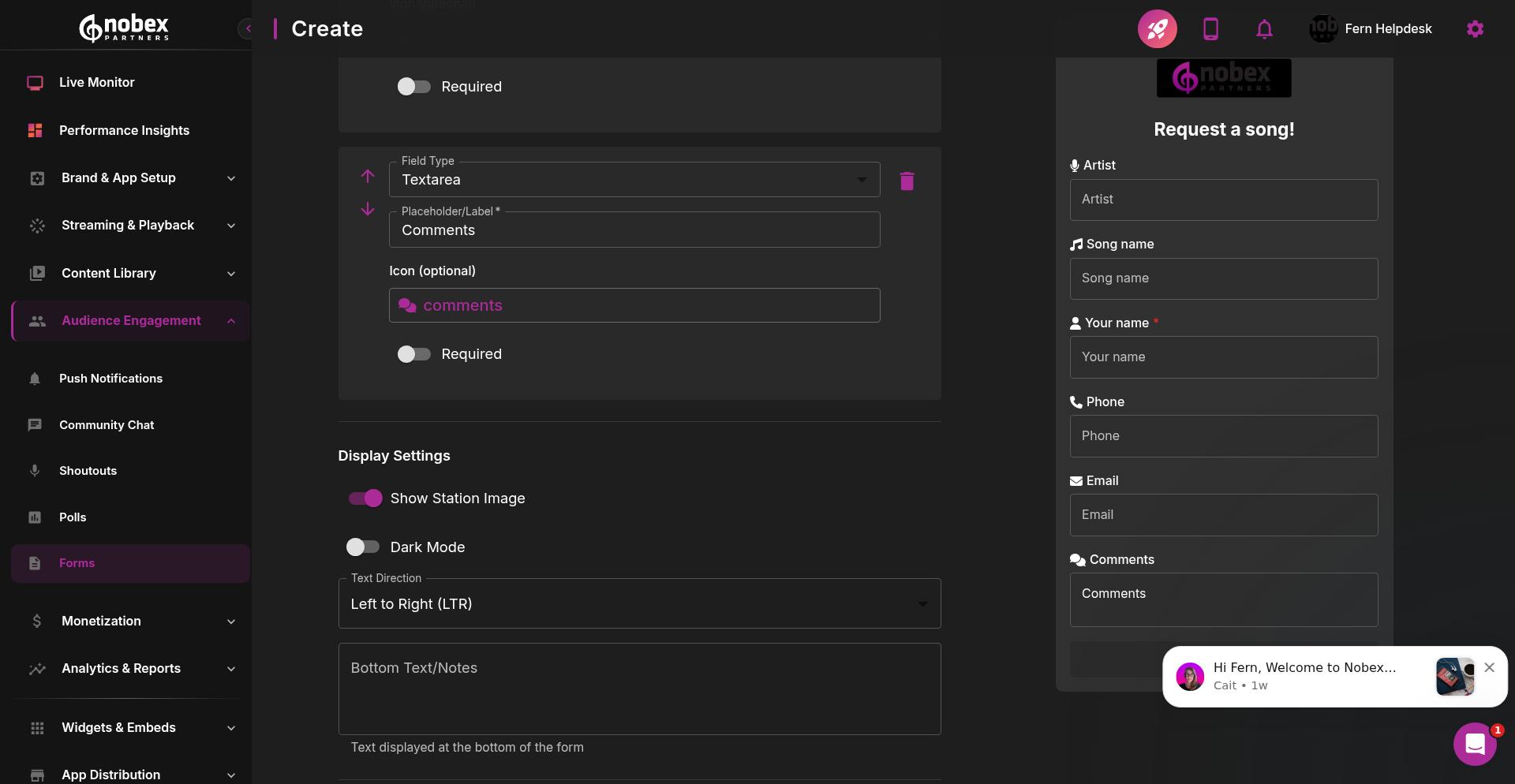
The form editor lets you customize field labels, add or remove fields, set required fields, change placeholder text, and configure email notifications for new submissions.
When you're satisfied with your form, click Create New Form to save it.
Activating Your Form
Like polls, forms must be manually started before listeners can submit responses. Click the Start button next to your form to enable submissions.
You can add forms to your App Home Screen by setting up a Forms widget. For a complete guide on configuring your home screen layout, see our App Home Screen Builder article.
With these Audience Engagement tools, you have everything you need to build an active, connected community around your station. Start with one or two features and expand as your audience grows!