
Users & Roles
Users & Roles lets you add team members to your dashboard and control what features they can access based on their role.
Accessing User Management
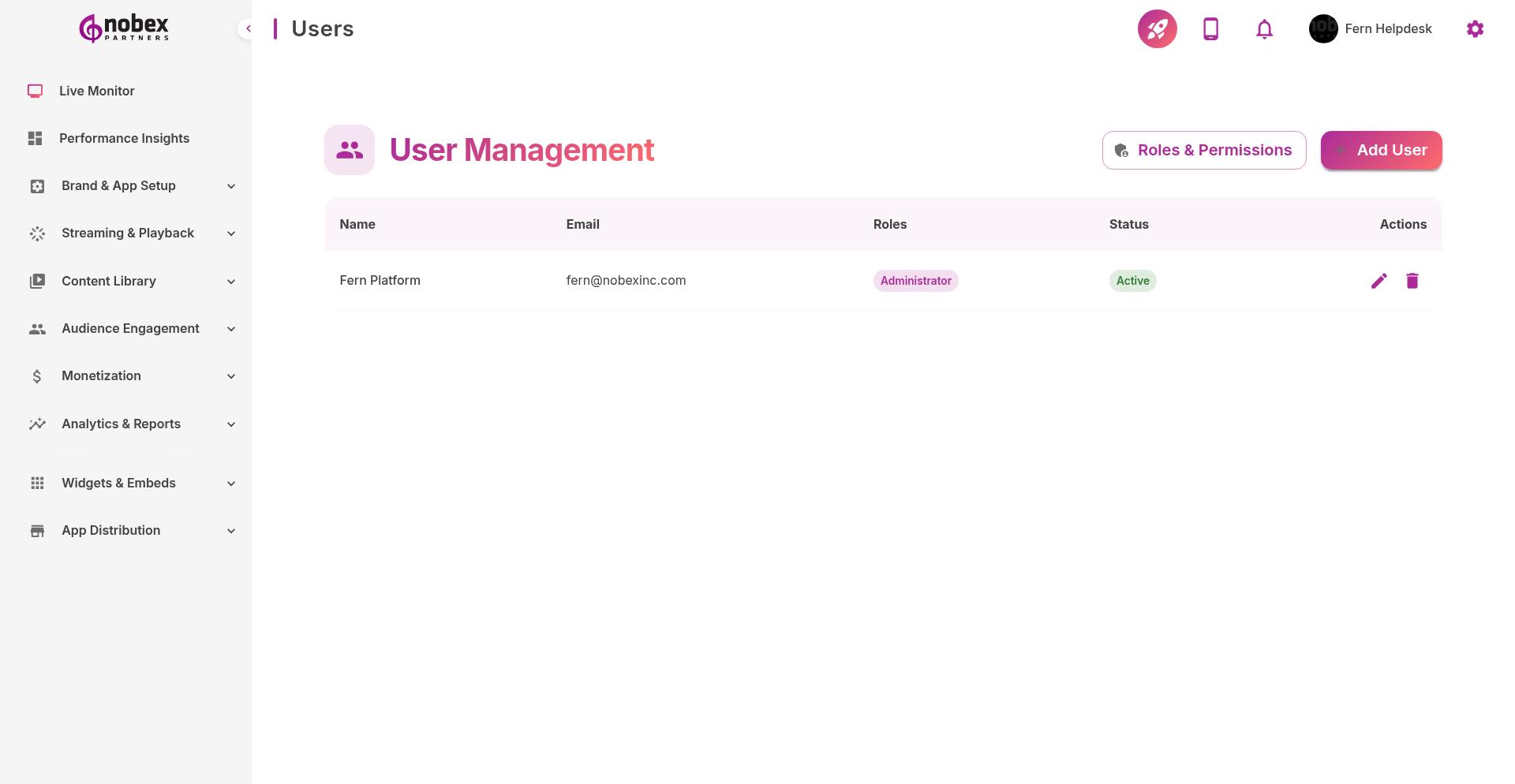
Navigate to Users from the header menu or visit /users.
Adding Team Members
Click Add User to invite someone to your dashboard. Provide:
Email Address — Where the invitation will be sent
Name — User's full name
Role — Select from predefined roles (Administrator, Editor, DJ, etc.)
Custom Permissions — Override role defaults if needed (Enterprise only)
Users receive an email invitation to create their password and access the dashboard. Invitations expire after 7 days.
Managing Existing Users
From the user list, you can:
Edit Role — Change someone's access level
Deactivate — Temporarily disable access without deleting the account
Remove — Permanently delete user access
Resend Invitation — Send a new invite email if the original expired
View Activity — See what actions a user has taken in the dashboard
Assign the narrowest role that gives users what they need. Don't make everyone an Administrator—limit that to 1-2 people.
Available Roles
Administrator — Full access to everything, including billing and settings
Editor — Manage content (schedule, app builder, content library)
DJ — Stream management (stream settings, playlist, audio stories)
Engagement Manager — Audience features (push, chat, polls, forms, shoutouts)
Monetization Manager — Ads and revenue management
Analyst — View-only access to analytics and reports
Viewer — Read-only access to dashboard and basic info
For detailed permissions per role, see the Roles & Permissions article.