
Chapter 7: Using Widgets & Embeds
The Widgets & Embeds section lets you create customizable, embeddable components for your website. Display your web player, playlists, and weekly schedule directly on your site so visitors can listen and engage without downloading your app.
Before you begin: You'll need access to your website's HTML to embed these widgets. If you're using a website builder like WordPress or Wix, look for "Custom HTML" blocks.
Accessing Widgets & Embeds
Log in to your Nobex Partners admin portal and navigate to the Widgets & Embeds section from the main menu.
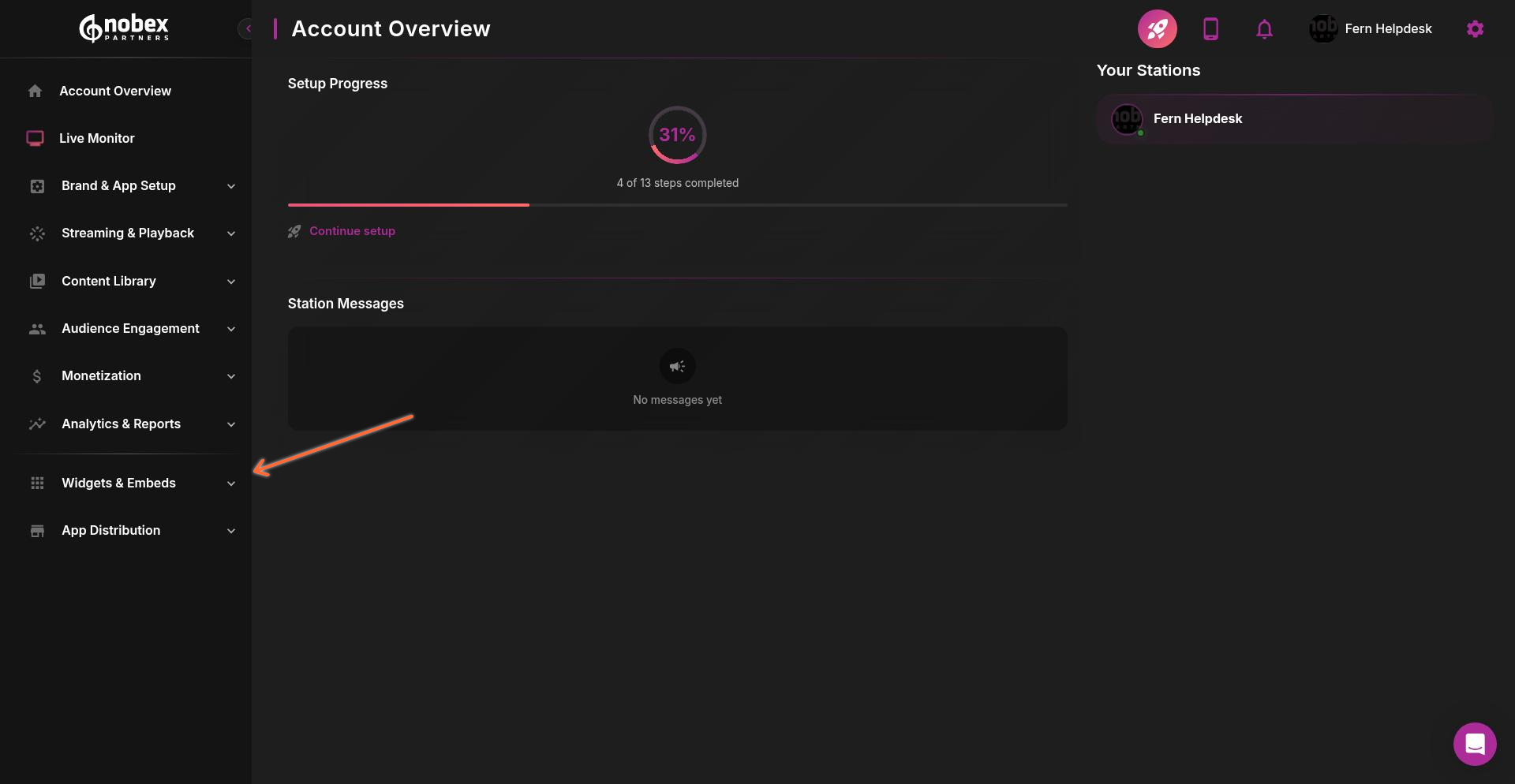
You'll see three widget types in the navigation: Webplayer, Playlist, and Weekly Schedule. Each widget has its own customization options and embed code.
Webplayer Widget
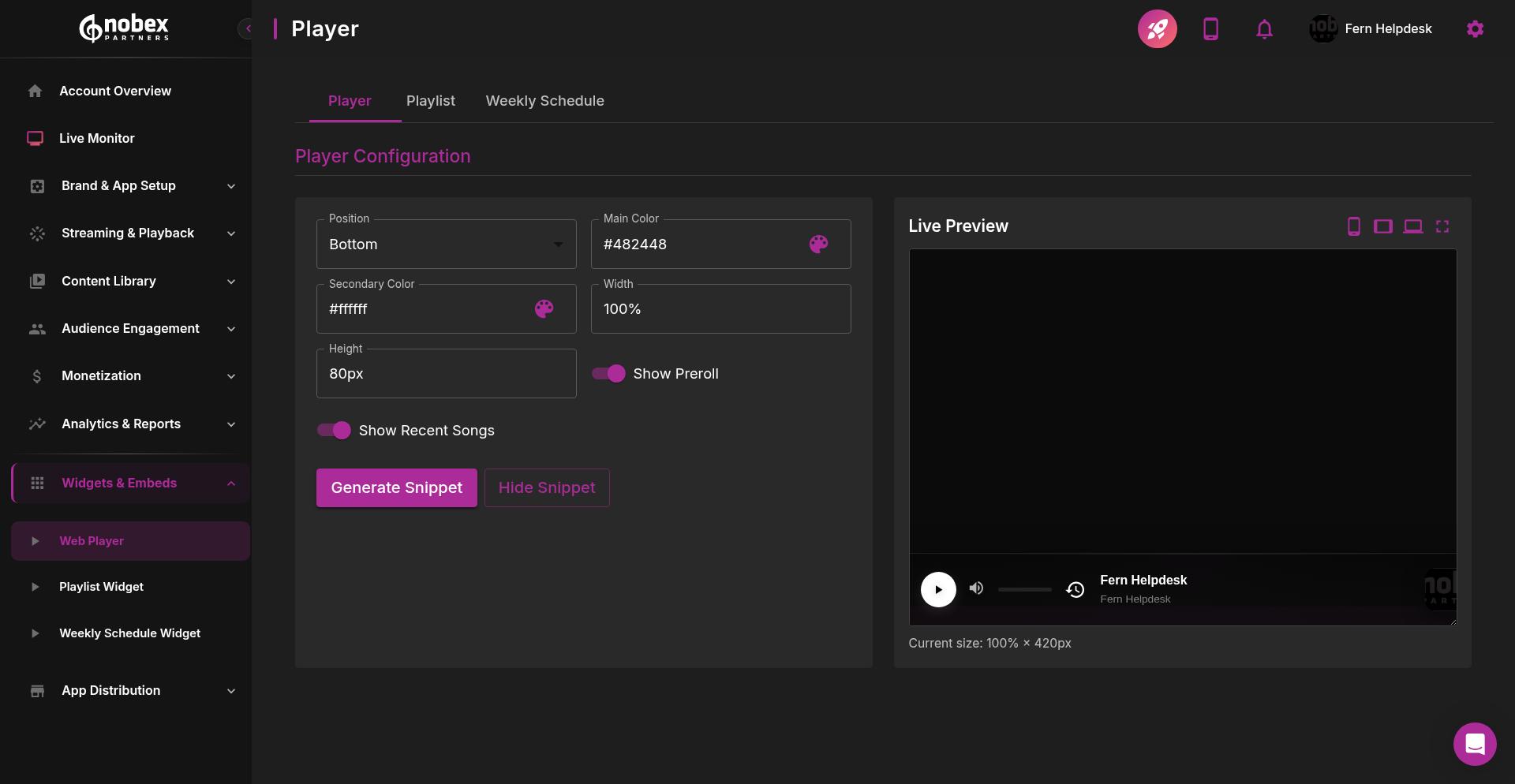
The Webplayer widget embeds a fully functional stream player on your website. Click the Webplayer tab to access customization options.
Customization Options
The Webplayer offers extensive visual and functional customization:
Player Position — Choose between top or bottom of the page
Brand Colors — Set primary and secondary colors to match your website branding
Dimensions — Configure width and height in pixels or percentages for responsive design
Features — Toggle options like preroll messages, recent songs display, and album artwork
Live Preview — See changes in real-time before generating embed code
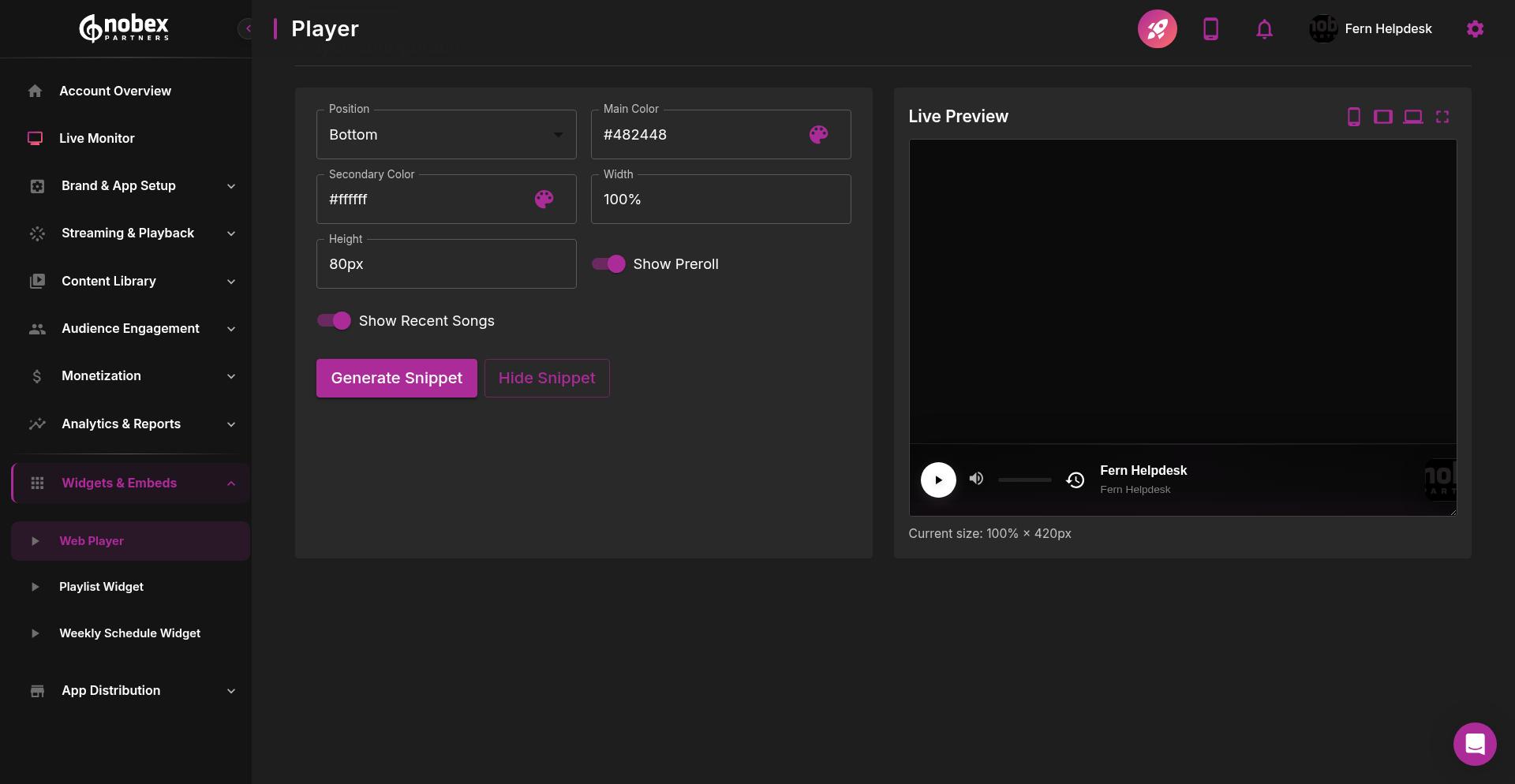
Adjust colors, sizing, and features using the controls on the left. The preview pane on the right updates instantly so you can see exactly how the player will look on your site.
Use your website's brand colors for a seamless integration. The player will look like a native part of your site rather than a third-party embed.
Once satisfied with your customization, click Generate Embed Code to get the HTML snippet. Copy the code and paste it into your website where you want the player to appear.
For more details, see Web Player Widget.
Playlist Widget
The Playlist widget displays recently played songs on your website. Click the Playlist tab to configure how your playlist appears.
Display Modes
The Playlist widget offers three distinct display modes to fit different layouts and use cases:
List Mode
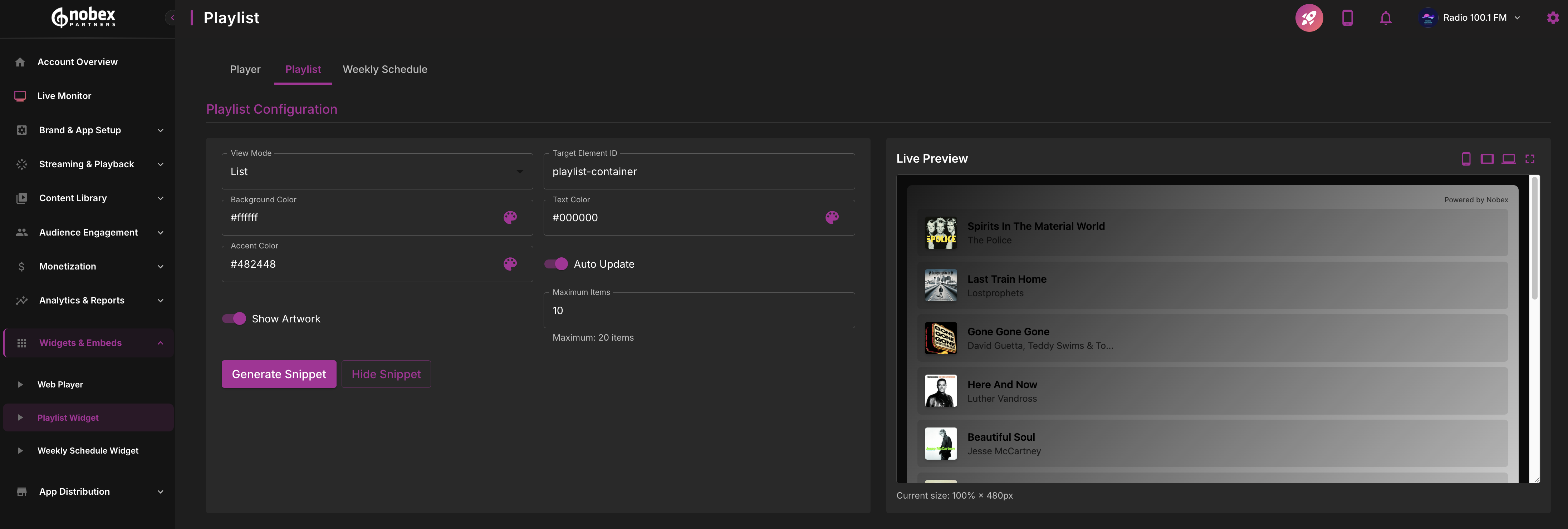
List mode displays songs in a vertical list format—ideal for sidebars or dedicated playlist pages. Each song shows artwork, title, artist, and timestamp. This mode works well for narrow spaces and displays the most information per song.
Grid Mode
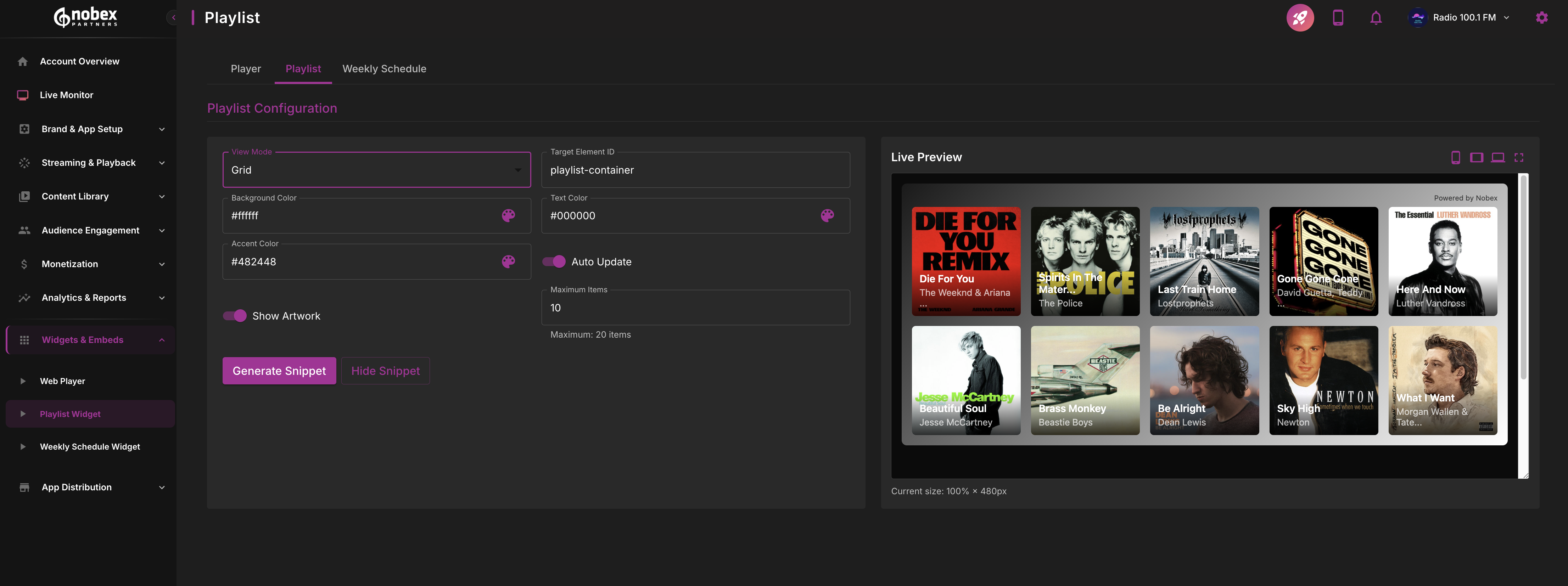
Grid mode arranges songs in a responsive grid layout with larger album artwork. Perfect for homepage "Now Playing" sections or music-focused pages where visual impact matters. The grid automatically adjusts columns based on available width.
Carousel Mode
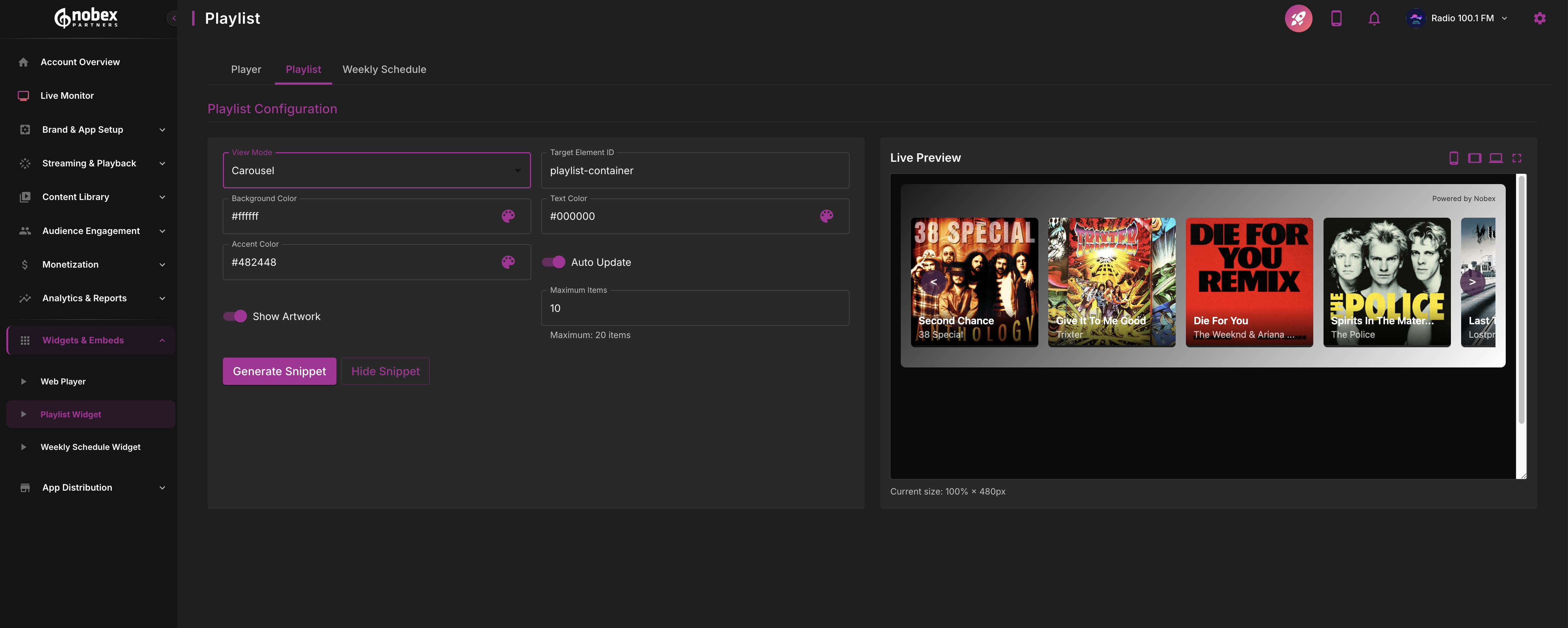
Carousel mode presents songs in a horizontal scrollable slider. Best for compact spaces where you want to show multiple songs without taking vertical space. Visitors can swipe or click arrows to browse through tracks.
Configuration Options
Regardless of display mode, you can customize:
Auto Update — Automatically refresh when new songs play (no page reload needed)
Colors — Background, text, and accent colors to match your site
Album Artwork — Show or hide album art thumbnails
Target Element — Specify which HTML element will contain the widget
Enable Auto Update so the playlist refreshes in real-time as new songs air. Visitors always see current tracks without refreshing the page.
After configuring, generate the embed code and add it to your website. The widget requires two snippets: an HTML container element and a JavaScript file.
For more details, see Playlist Widget</internal://art_01KH6MM01SWDQA77D1Y8K78JS3>.
Weekly Schedule Widget
The Weekly Schedule widget displays your programming lineup on your website. Click the Weekly Schedule tab to access schedule customization.
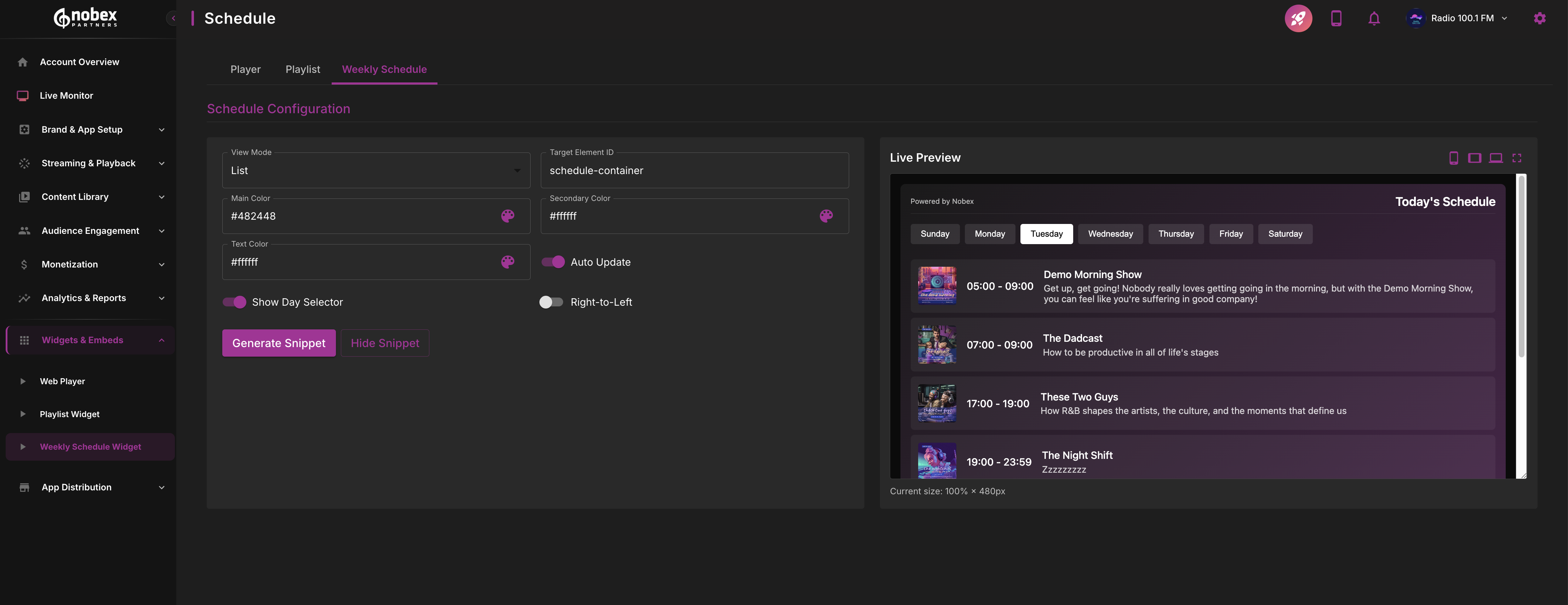
Available Features
The Weekly Schedule widget includes several powerful features:
View Modes — Full week grid, single day list, or compact mode showing only current and next shows
Current Show Highlighting — Automatically highlights the currently airing program in real-time
Day Selector — Lets visitors switch between days to see the full week's programming
Timezone Support — Display show times in visitor's local timezone
Right-to-Left Layout — Support for Arabic or Hebrew language websites
Color Customization — Brand colors for headers, highlights, and text
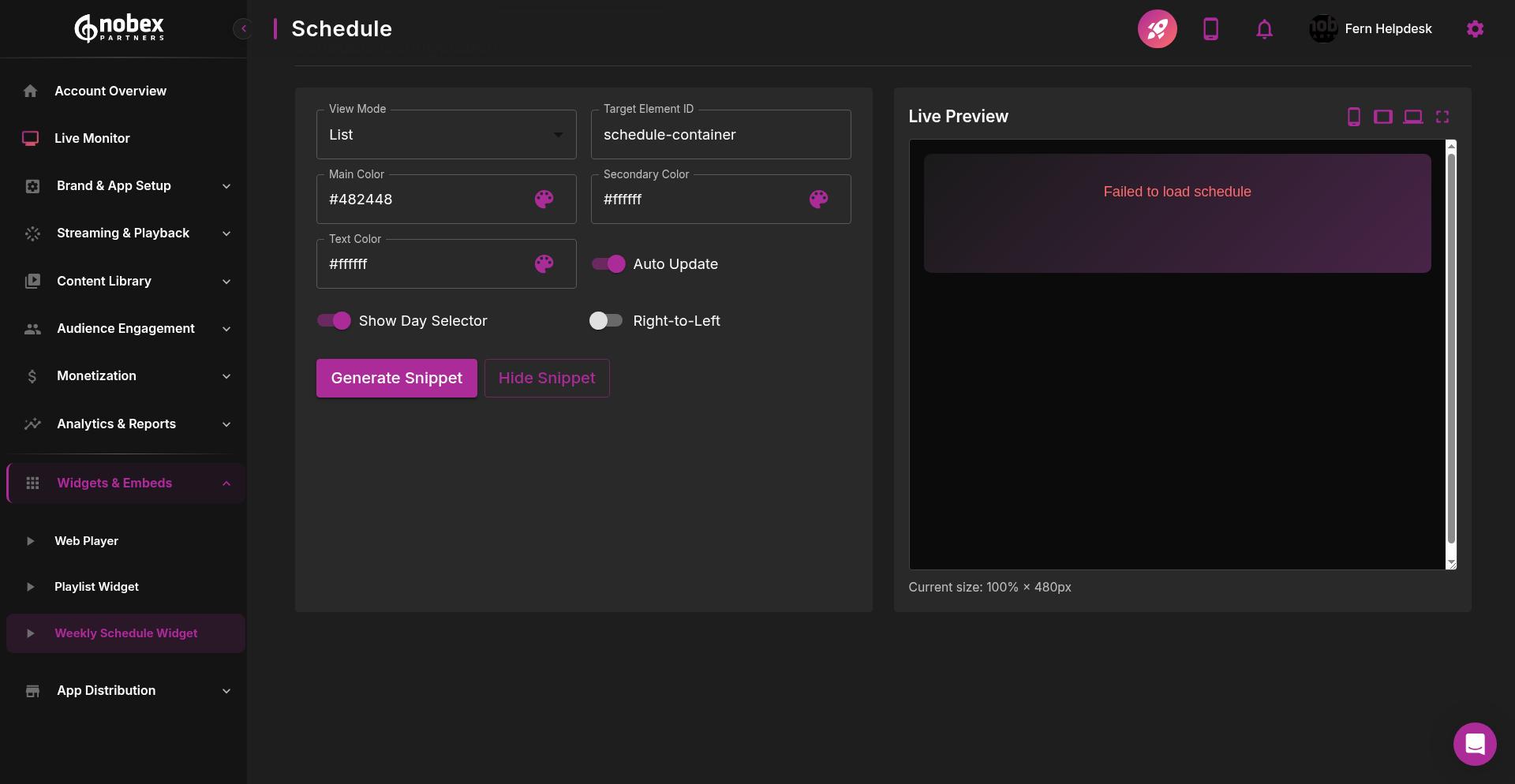
Configure colors, view mode, and features using the controls. The preview shows how the schedule will appear on your site, including the current show highlight if Auto Update is enabled.
Enable the Day Selector and Current Show Highlighting features. This makes it easy for visitors to see what's on now and browse the full week's programming.
Automatic Updates
The schedule widget pulls data directly from your Nobex dashboard. When you update your weekly schedule in the admin portal, the widget on your website updates automatically within minutes—no need to regenerate or update embed code.
After configuration, click Generate Code to get the embed snippet and add it to your website.
For more details, see Weekly Schedule Widget.
General Embed Tips
All widgets require your stream to be active and configured correctly. If visitors see errors, verify your stream settings in the admin portal first.
Best practices for embedding widgets:
Test on mobile and desktop — All widgets are responsive, but verify they look good on both screen sizes
Match your branding — Use consistent colors across all widgets for a cohesive look
Enable auto-update features — Keep content fresh without requiring page reloads
Don't regenerate code unnecessarily — Widgets pull settings from your dashboard, so most changes don't require updating embed code
Use descriptive element IDs — If embedding multiple widgets, give each a unique, clear ID like "nobex-player" or "station-playlist"
Widgets update automatically when you change stream settings, branding, or schedule in your dashboard. You only need to regenerate embed code if you change structural settings like display mode or dimensions.