Chapter 3: Content Library Features
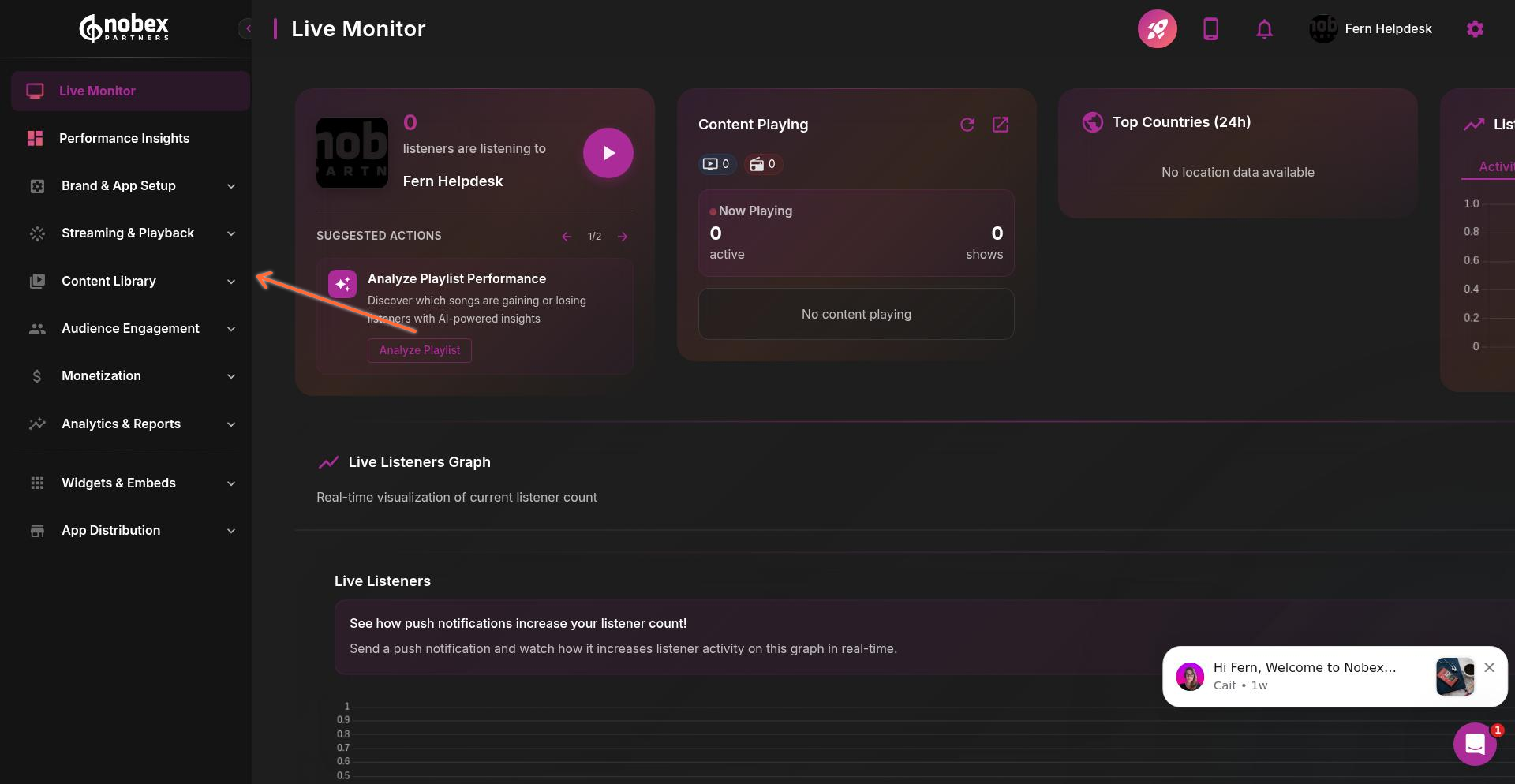
The Content Library is your central hub for managing audio content and images in your Nobex Partners app. Access it from the left sidebar of your dashboard to upload episodes, create audio stories, and organize media assets.
Audio On Demand
The Audio On Demand section lets you upload and manage podcast episodes and on-demand audio content for your app. The interface displays all your episodes in a searchable list with options to filter and manage your content.
Creating a New Episode
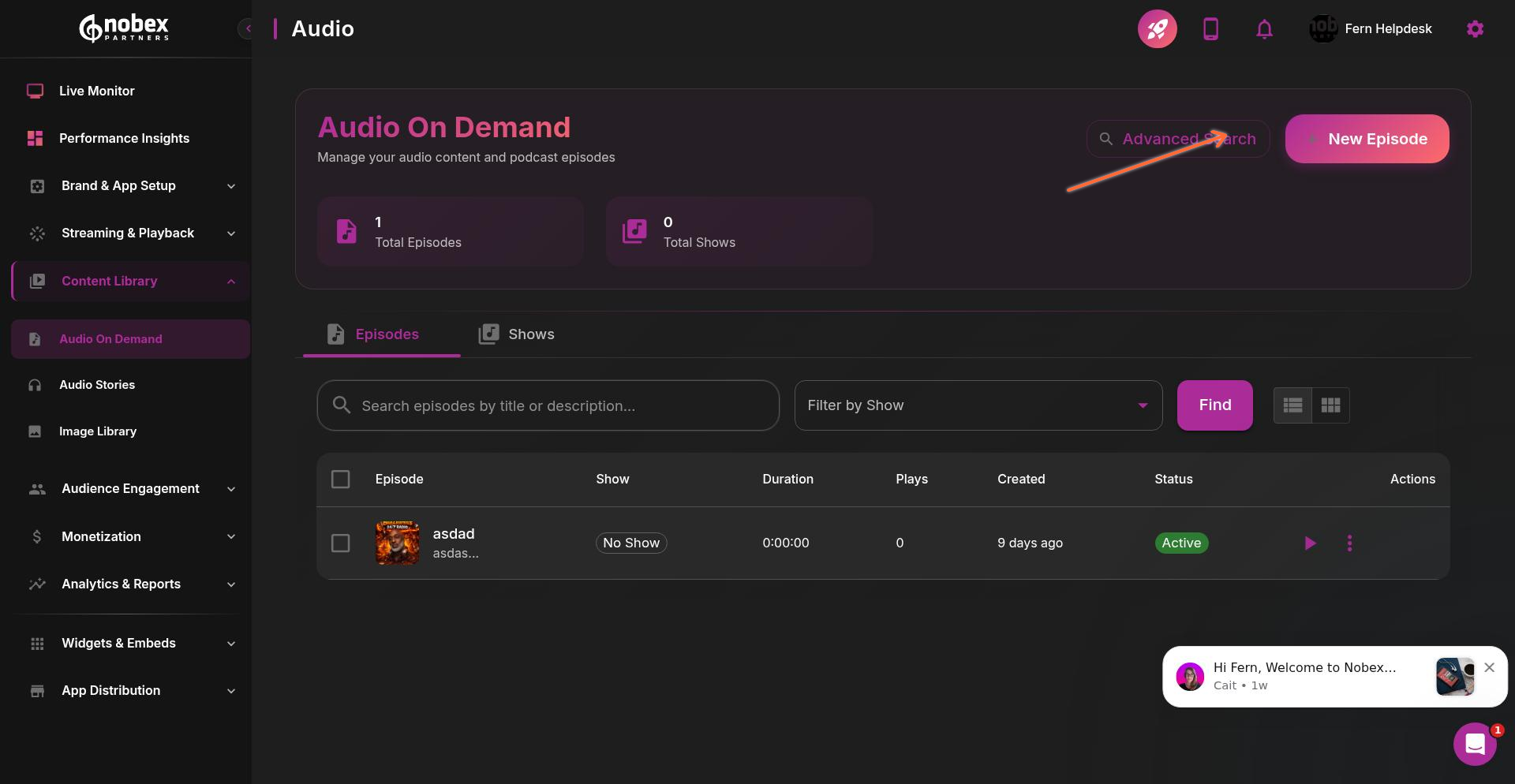
To add a new episode, click the New Episode button in the top-right corner. You'll first need to accept the terms and conditions for content distribution.
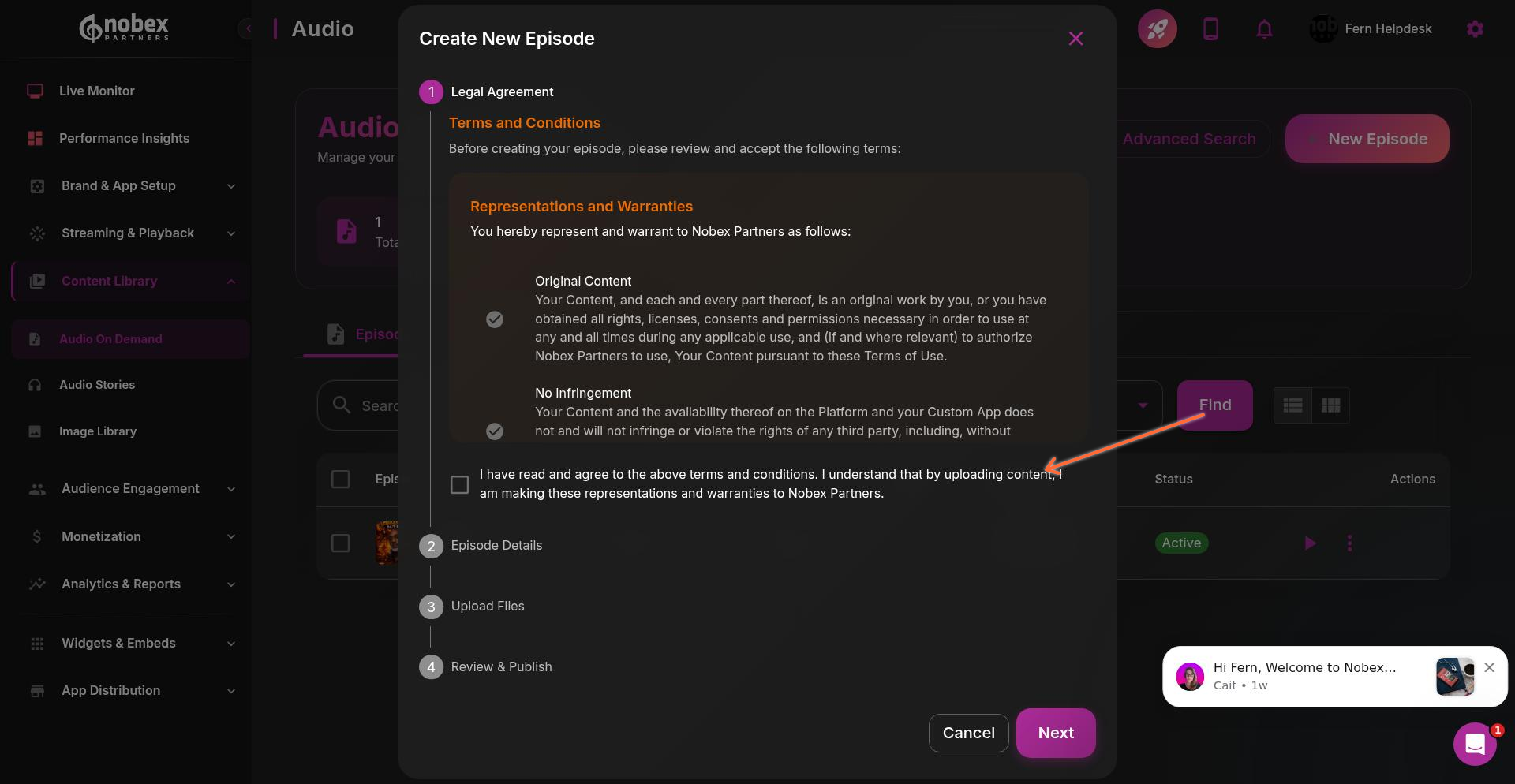
After accepting the terms, you'll see the episode details form where you can enter:
Episode title
Description
Category or tags
Publication settings
Thumbnail image
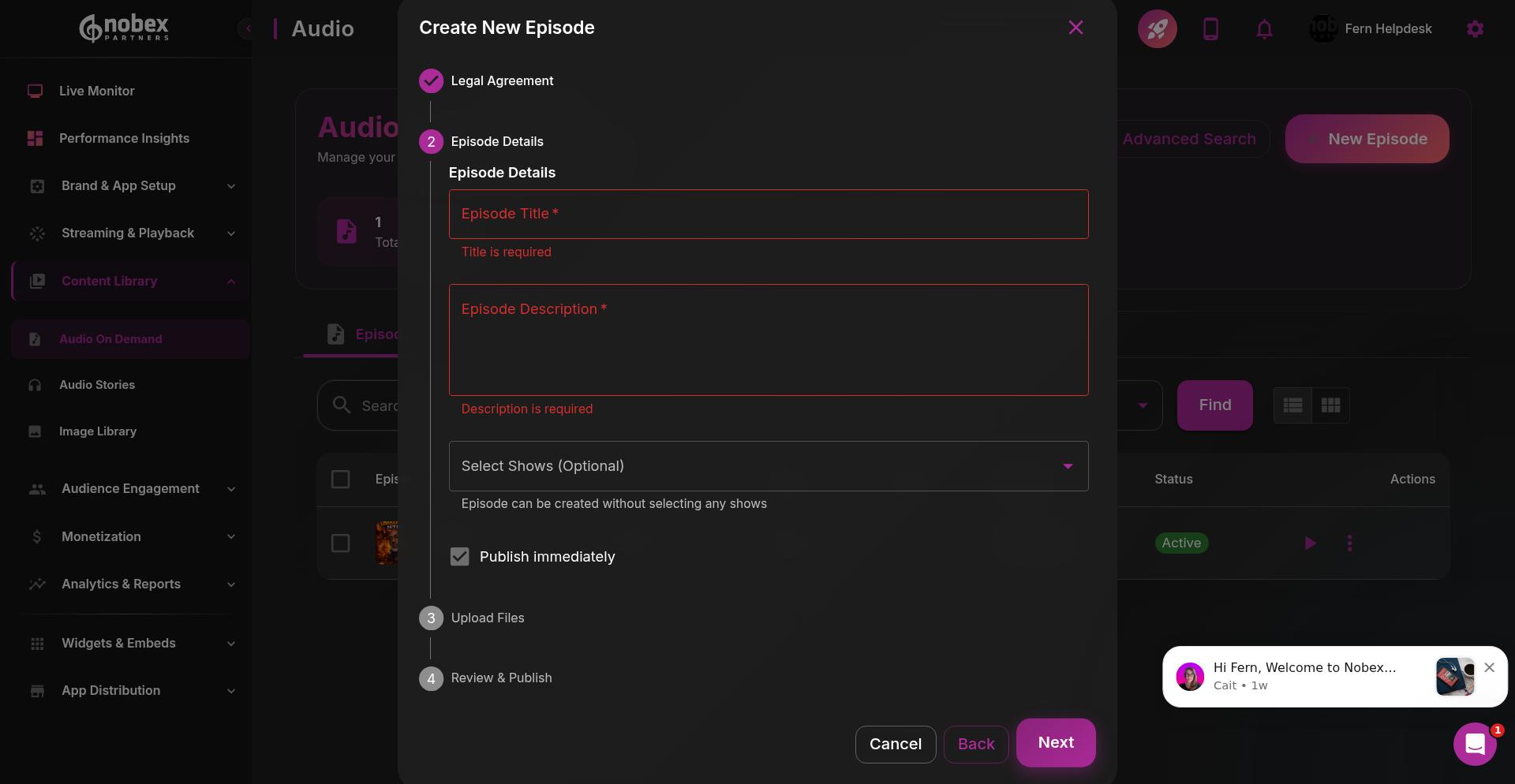
Scroll down to the Upload Files section to add your audio file. Click in the upload area to select your audio file from your computer. Your file should be in a supported format (MP3, AAC, or other compatible audio formats).
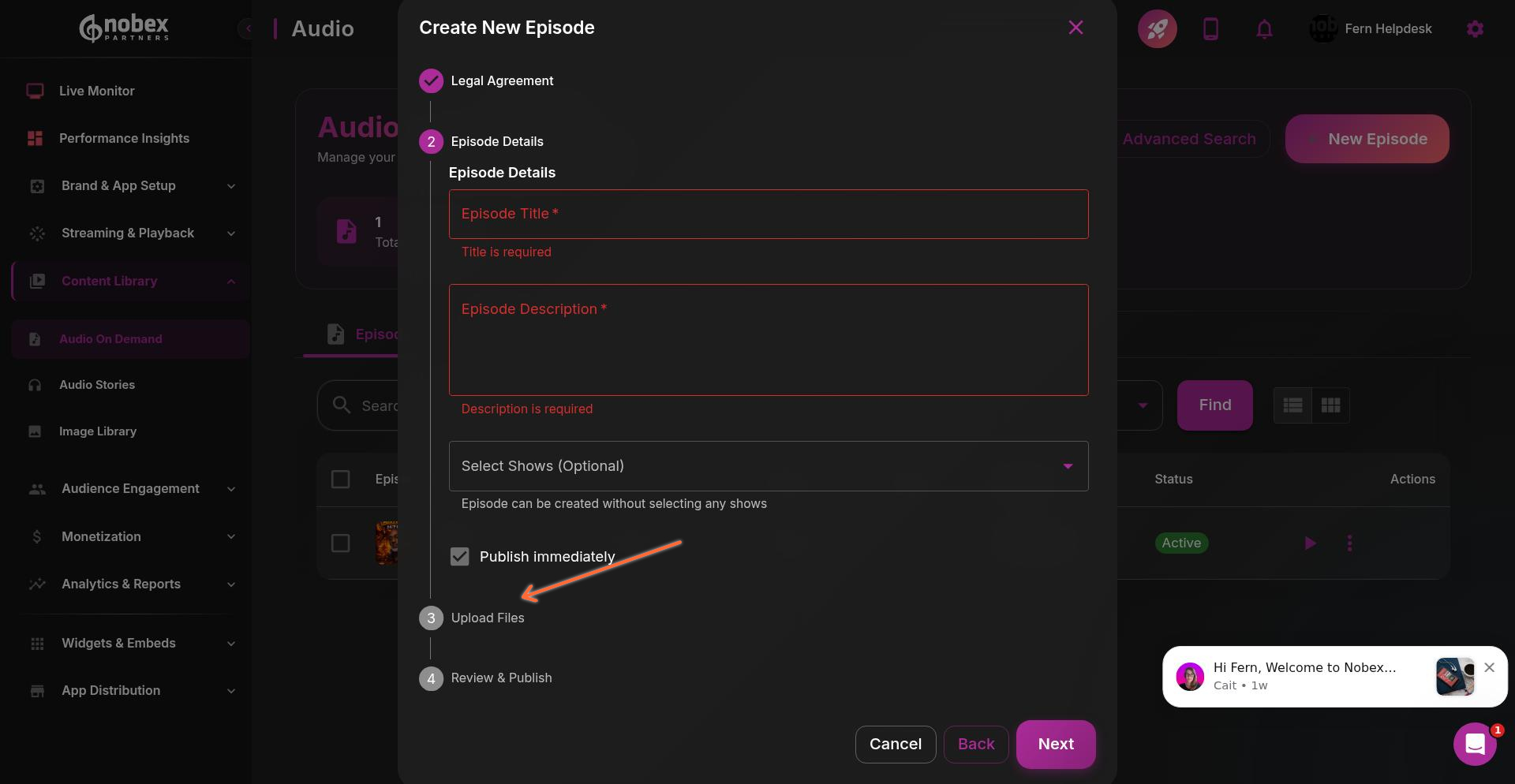
Ensure your audio files are in MP3 or AAC format for best compatibility across devices. Nobex supports MPEG, AAC, and WMA formats.
Audio Stories
Audio Stories lets you create short-form audio news updates and content snippets for your listeners. This feature is ideal for news updates, announcements, or bite-sized content that complements your live stream or podcast episodes.
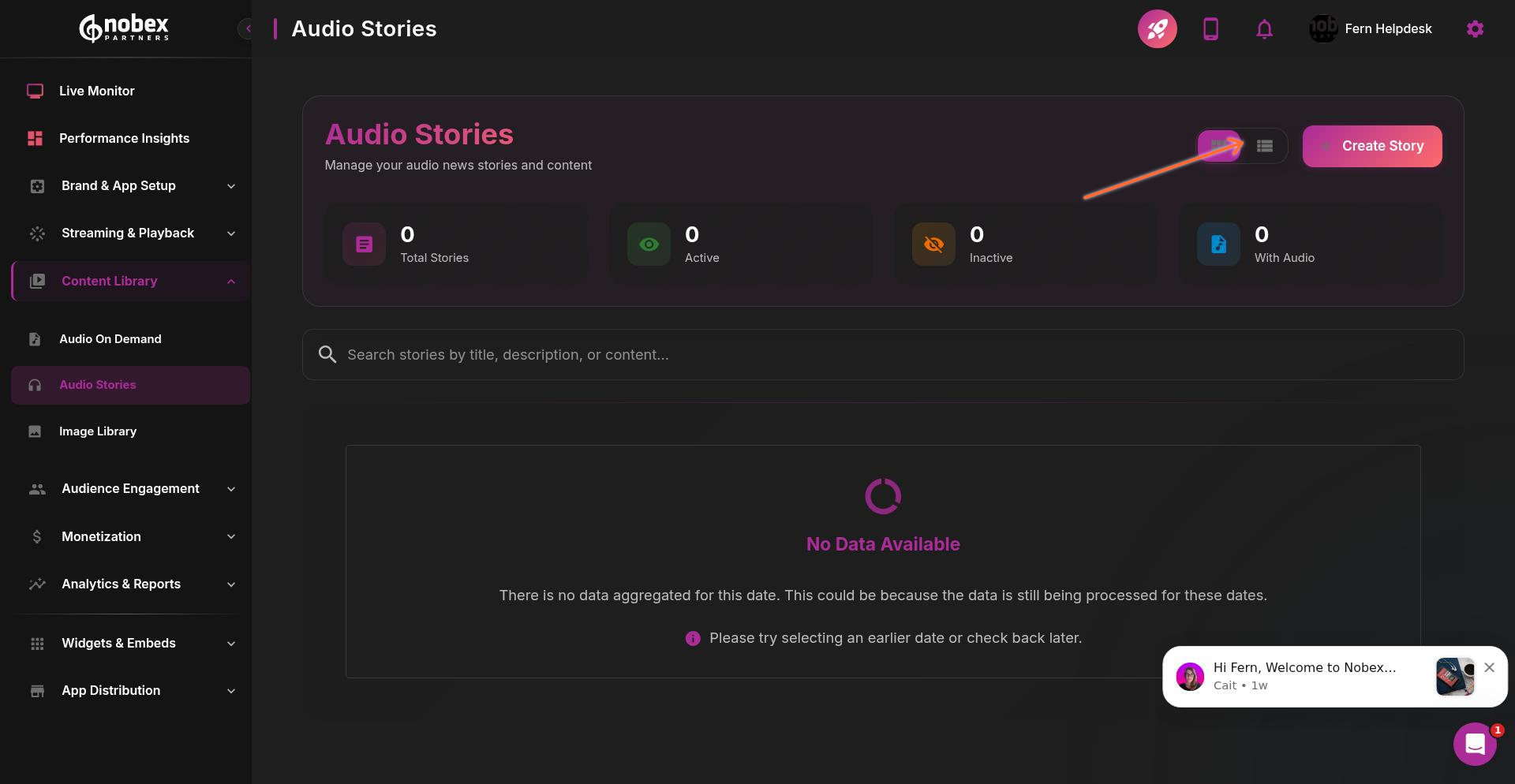
Creating an Audio Story
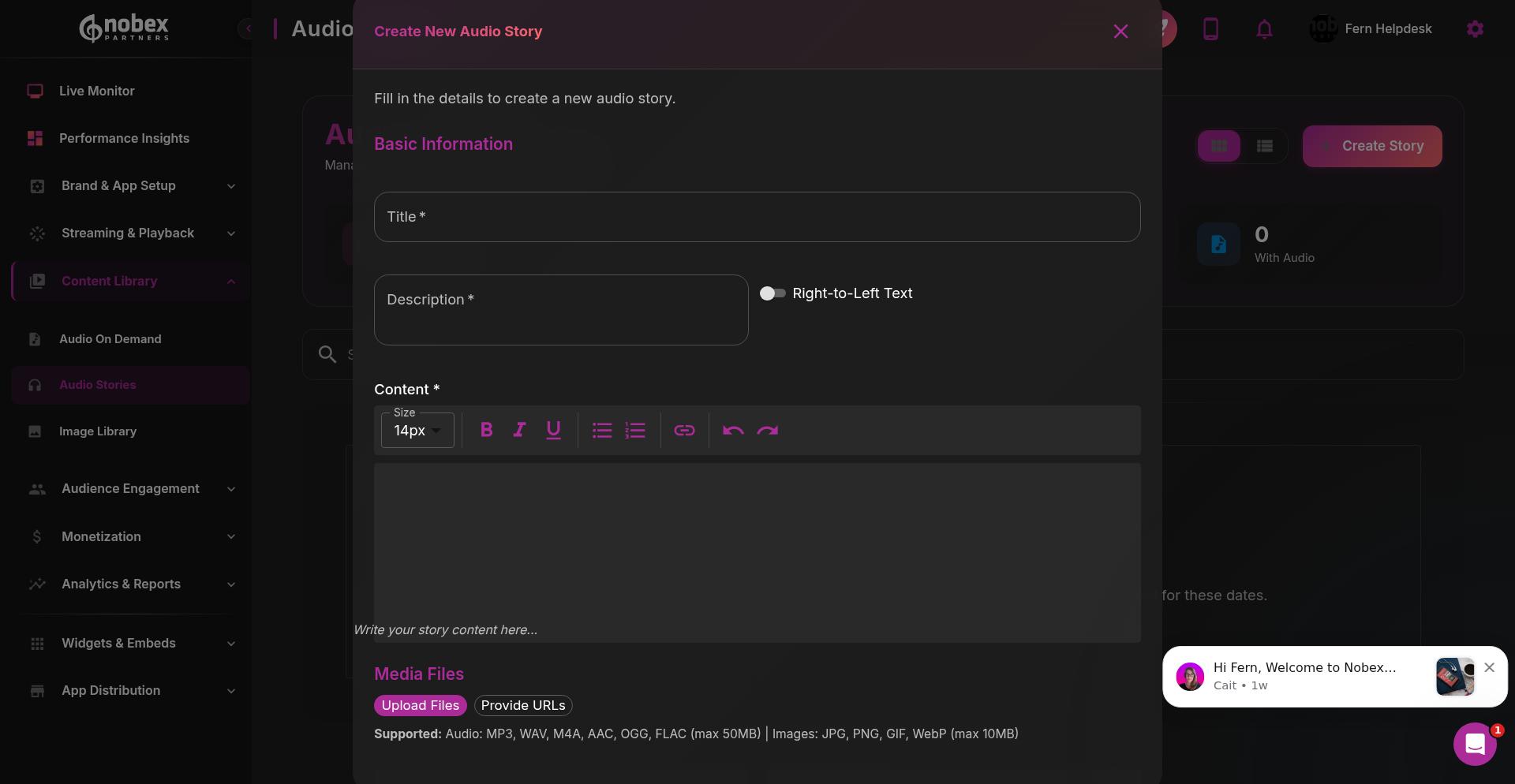
Click Create Story to launch the story creation form. Enter your story details including title, audio content, and any relevant metadata.
Once you've created your audio stories here, you can add them to your app's home screen by navigating to Brand & App Setup > App Home Screen in the dashboard. This lets you feature your latest stories prominently for app users.
Audio Stories created in the Content Library can be searched and added to your app home screen through the Brand & App Setup section, giving you flexible content placement options.
Image Library
The Image Library is your repository for all images used throughout your app and dashboard features. This includes episode thumbnails, app icons, background images, and any other visual assets you've uploaded.
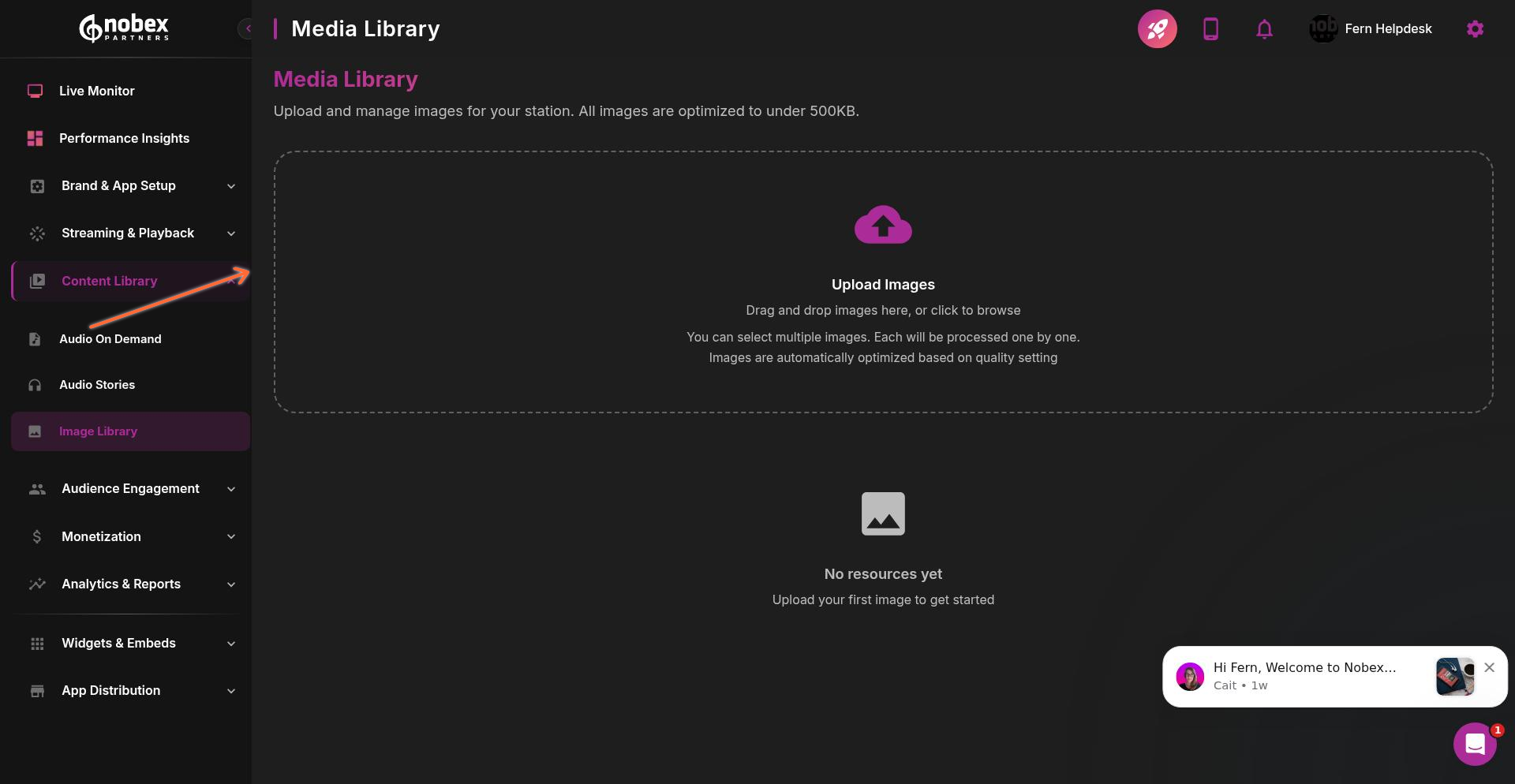
You can upload new images by dragging and dropping files into the upload area or clicking to browse your files. Previously uploaded images are displayed in the library where you can:
Search and filter images by name or date
Preview images before using them
Reuse images across multiple features
Delete unused images to keep your library organized
Keep your Image Library organized by using descriptive filenames before uploading. This makes it easier to find the right image when building app screens or adding episode artwork.
The Image Library serves as your central media management system, ensuring all your visual assets are easily accessible whenever you need them across the Nobex dashboard.